 Wilder Labs Studio
Debt Payoff Lab user guide
Everything you need to set up Debt Payoff Lab and use it week to week, from getting your copy to reconciling the bank.
Before you start
- You need a Claude account. A free one works. The app opens in Claude on the web, in the Claude desktop app and in the Claude mobile app.
- Make your own copy of the app in Claude. Your numbers save to your copy, not to the shared link. Chapter 2 shows how.
1. Before you start
Debt Payoff Lab builds a plan to pay off your credit cards with the money you already have, and tells you what to pay each day so checking never drops below a number you pick. It never suggests new credit, balance transfers or loans.

What it does
The app builds two pictures from your numbers:
- The payoff plan goes month by month. It pays your bills and every card's minimum, then sends what's left to one card at a time, in the order you choose. When a card reaches $0.00, its minimum joins the extra for the next card. You get a debt-free month and the interest and fees along the way.
- The cash flow goes day by day through your main checking account. Every payday, bill, card payment and savings move lands on its real date, so you can see what checking ends at each day.
The This week tab turns both into a to-do list: what's due, from which account, and whether you're OK.
Planning math, not advice
The app does planning math with the numbers you give it. It isn't financial or legal advice. Rough numbers give a rough plan, and you can fix any number at any time.
What to have nearby
- A recent statement for each card, or its balance, limit, rate (APR), minimum and due day
- Your take-home pay and the days it comes in
- Your regular bills and about what each costs
- What checking holds today
Rough numbers are fine to start. Setup takes about 15 minutes.
Two versions
- The Claude version opens inside Claude: on claude.ai in a web browser, in the Claude desktop app, or in the Claude mobile app on iPhone and Android. You need a Claude account to use it, and a free account works. You make your own copy of the app, and your numbers save to your own account, where only you can see them. Beta testers use this version, with every feature and no limits.
- The desktop app runs on your own Windows computer and saves to one file there. It needs no account and no internet. The free version is out now as a beta; a Mac version and Pro come later. See chapter 10.
Both versions look and work the same, and a backup file moves your numbers between them.
2. Getting your copy
In the Claude version, the first thing to do is make your own copy of the app. Your copy is where your numbers are saved. On the desktop, install the app once and it opens in your browser.
The Claude version: make your own copy first
You need a Claude account. If you don't have one, sign up for a free account at claude.ai. The app runs inside Claude. It works the same on claude.ai in a browser, the Claude desktop app and the Claude mobile app.
Why a copy? The Get the app button opens the shared link: the one everyone opens. Numbers typed there are saved only in that browser, on that device, and they're gone if the browser's data is cleared or the shared link is turned off. Your own copy saves to your Claude account instead. Only you can see the numbers in it, and they follow you to every device where you're signed in.
- Choose Get the app on the Debt Payoff Lab page. The app opens in Claude. Sign in if you're asked.
- A yellow banner at the top says you're on the shared link, and the welcome page starts with "First, make your own copy".
- Open the artifact's menu at the top of the page and choose to make a copy (it may say remix).
- Your copy opens. Use it from now on, and bookmark it so you can open it again.
How to tell you're in your copy: the yellow banner is gone, and the footer at the bottom of every page says "Saved in your Claude account."


Already typed numbers on the shared link? Choose Save a backup file there, then Load a backup in your copy. Nothing is lost.
Two features use Claude itself: reading PDF and photo statements, and the Ask box. They run on your own Claude account and count toward your plan's usage limits, like any chat. Everything else works without them.
Getting a newer version
The shared link always has the newest version of the app. Your copy stays the version it was when you made it, so fixes and new features don't reach it on their own. When you want the newest version:
- In your copy, choose Save a backup file on Household > Summary.
- Open the shared link from the Debt Payoff Lab page and make a new copy.
- In the new copy, choose Load a backup and pick the file you saved.
- Bookmark the new copy and use it from now on.
Your backup carries every number, check-off and statement, so the new copy picks up where the old one left off.
The desktop app (Windows, beta)
The desktop app runs on your own computer. It needs no account and no Claude, and your numbers never leave your computer. The download is the free version. A Mac version is coming later.
Download for Windows (beta). Windows 10 or 11 (64-bit). If your antivirus or Windows blocks the program, use the no-exe version instead. It's the same app, started with Python's own signed program.
- Unzip the download: right-click it and choose Extract All. Opening the app from inside the zip won't work.
- Open the Debt Payoff Lab folder and double-click Start Debt Payoff Lab.bat.
- If you see Windows protected your PC, click More info, then Run anyway. The beta isn't signed with a paid certificate yet.
- A blue Wilder Labs Studio window opens, then the app opens in your browser. Keep that window open while you use the app. Closing it stops the app; your numbers are already saved.
Try the made-up household first
On the welcome page, choose Try it with made-up numbers. A made-up family loads with eight cards, two incomes (one steady, one hourly), a full bill list, one tight week and a December bank statement to reconcile. Click around every tab. Nothing in it is anyone's real numbers.
When you're ready, choose Clear demo and start mine on the strip at the top of any page. That clears the made-up numbers and opens setup.
3. Setup, step by step
Setup is ten short steps. Every step saves as you go, and every step has Skip for now, so you can see a plan before everything is in and come back later.

- Who's in the household. One or two adults, a display name and a color for each. The color marks that person's cards and income in tables and charts. Pick how money works in your house: joint, separate or mixed. The plan works the same way for all three.
- Grab your latest statements. Drop all your latest card and bank statements at once. CSV, OFX and QFX downloads from your bank's website work best; PDFs work too. The app shows what it found in each file, and nothing saves until you choose Looks right. Only the last 4 digits of any number are kept.
- Your accounts. Main checking is required: it's where pay lands and bills come out, and it's the account the cash flow follows. Add savings and any account someone else pays bills from. Last 4 digits are optional.
- Income. For each person: take-home pay per check, how often it comes and the next payday. Hourly work, gig work, benefits and a change coming up (a new job or a raise on a date) are under More income options.
- Bills. Start from a common list (rent or mortgage, utilities, phone, internet, insurance, groceries, gas, childcare, subscriptions). Fill in the amounts that apply and leave the rest blank. Rename any of them, and add your own after this step.
- Cards. Add every card with a balance, even small ones. A plan missing a card is a wrong plan. You need the name, balance, APR, minimum due this cycle and the due day. The rest can wait.
- Other debts. Loans, medical bills and anything in default or with a collection agency. They're kept on the list but left out of the payoff plan unless you move one in. Skip this if you have none.
- Goals and big costs. A starter emergency fund, and costs you know are coming, like a car registration. Turn on Save for this first for anything that should be ready before extra money goes to cards.
- Cash rules. The checking floor (the lowest you want checking to go, any amount from $0.00 up), the warning line, the checking cap, today's checking balance and how many days early to pay cards. Chapter 8 explains each one.
- Your first plan. Your debt-free month, the payoff order and the next two weeks of checking. Choose Finish setup. The app saves your starting card total and debt-free month so Progress can show how far you've come.


After setup, each step's numbers have a home: people, accounts and cash rules under Household; income and bills under Budget; cards on the Cards tab. You can run setup again any time from Household > Summary.
4. This week
This week answers "what do we pay today, and are we OK?" It's the first page you see after setup, with three sections: This week, Calendar and Progress.

What's due
Are we good right now? sits at the top: up to five quick checks, each marked Fine, Worth a look or Needs a look. They cover whether checking stays above your warning line for the next 14 days, whether this week's card payments are checked off, whether the plan is on track, when any benefits end, and how many cards were updated from a statement in the last 35 days.
Due these seven days lists every card payment, bill and savings move with its day and amount. A card payment shows what the plan says to pay, extra included.
- Check Paid when a payment goes out, or Autopay for one that pays itself. The boxes keep a record; they don't change the plan.
- From earlier days shows anything before today that isn't checked off yet.
- Statements to download lists card statements that closed in the last seven days. Download each from the card's website and upload it on Cards > Statements.
In the free desktop app, Paid and Autopay boxes appear for tracked cards. Bills, savings moves and your own reminders always get them.

Calendar
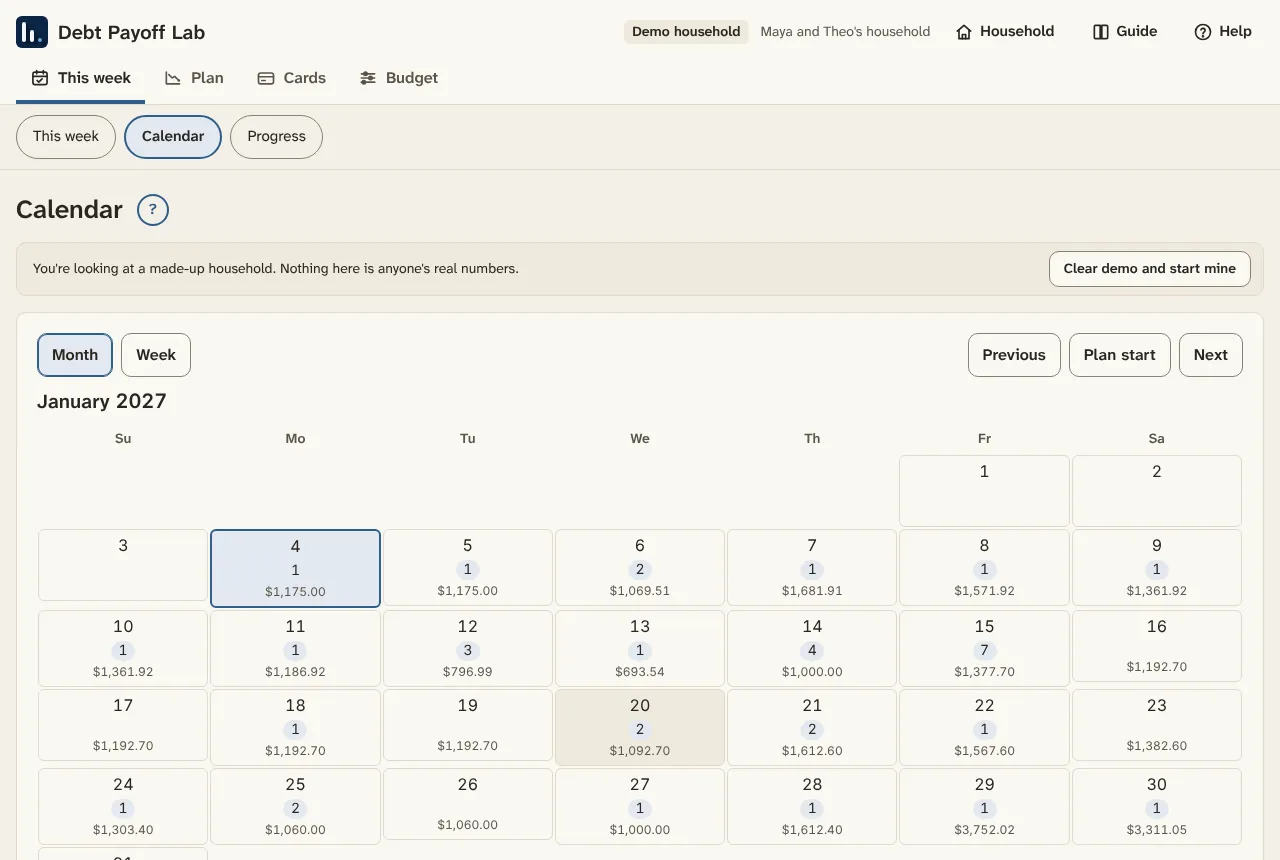
Paydays, card payments, bills, savings moves and your own reminders on their days.
- Switch between month and week views; use previous, today and next to move around.
- Each day shows where checking ends that day. A day under your floor is marked in red. On a phone, pick a day to see its balance in the day panel.
- Pick a day to see its list, with the same Paid and Autopay boxes as This week. Overdue items from the last 30 days show on today.
- Add your own reminder with a name, a date and an amount if it has one.
Card payments land on the day to pay them: your pay-early days before the due date.
Progress
How far you've come since you finished setup: the starting card total, how much is paid down, cards paid off, the debt-free month now and at setup, and interest and fees from your latest statements. Balances can rise for a while from interest and new charges; the plan accounts for that. History starts the day you finish setup, so the demo has none.
The Ask box (Claude version)
At the end of This week and at the top of Help, the Ask box answers plain questions from your own numbers, like "Can we pay the dentist next week?" or "Which card is next?" It runs on your own Claude account and sees only the last 4 digits of any account. Answers follow the same rules as the app: no new credit or borrowing, and planning math, not advice.
5. Plan
Plan shows when the cards reach $0.00, what checking does day by day, and where extra money helps most. It has four sections: Payoff plan, Cash flow, Where extra goes and I have extra cash.

Payoff plan
The big-number tiles show:
- Debt-free: the month the last card is paid off, and how many months from the start. The plan looks 10 years ahead at most.
- Interest and fees: everything the cards charge along the way, with the fee share.
- Minimums today, next month, and 6, 12 and 18 months out. They drop as cards are paid off.
- Owed on the first of the next four half-years, with cards left and how much is paid down.
Two charts follow: card debt by month, stacked by person, and required minimums against open credit room. Room on a card isn't money to spend, and the plan never counts it. The three ways side by side compares the payoff orders, and Payoff order lists each card and the month it's paid off.
The three payoff orders
Every order pays all the minimums first. The order only decides which card gets the extra.
- Highest rate first (avalanche): usually the least interest overall.
- Smallest balance first (snowball): whole cards paid off soonest, each freeing its minimum.
- Cash flow first: the card whose minimum is biggest for its balance goes first, so monthly room opens up fastest. Good when every month is tight.
The difference is often smaller than people expect. Pick the one you'll stick with; you can change it any time.
Cash flow
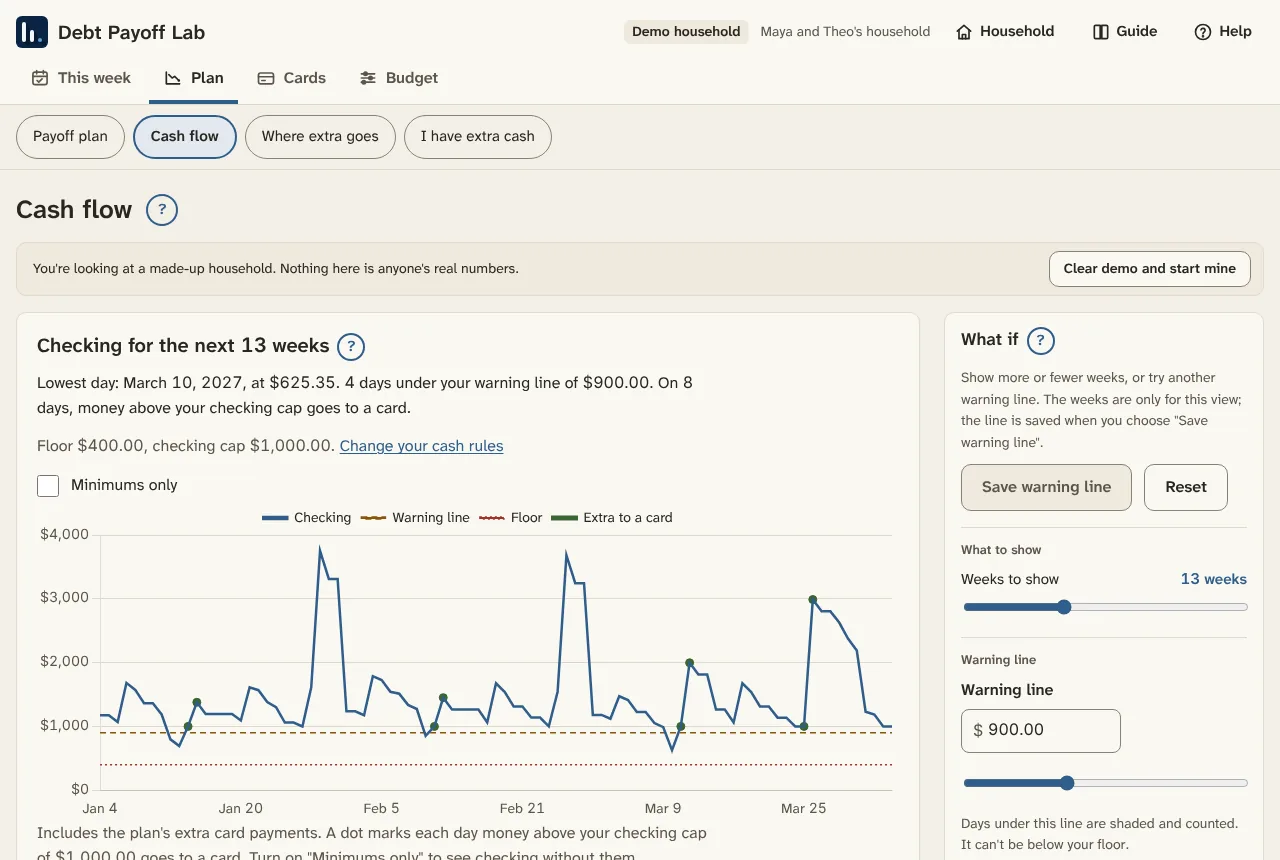
Main checking, day by day, for the next 13 weeks.
- The top line names the lowest day and how many days fall under your warning line or floor.
- The chart shows checking with the floor and warning line. A dot marks each day money above your checking cap goes to a card.
- Minimums only shows checking without the plan's extra payments.
- Day by day lists everything in and out, with what checking ends at each day.
Extra payments and cap sweeps. On a day checking would stay above your checking cap through the next payday, after every bill, minimum and savings move, the amount over the cap goes to the plan's next card that day. A sweep never takes checking under your floor. Past the weeks the cash flow covers, each month's leftover money goes to cards.
Tight days and how to fix them
A tight stretch is a run of days when checking dips under your warning line. Each one is listed with its dates, lowest balance and what pulls it down, plus fixes:
- Move a bill later, within how many days late that bill can be paid (set on Budget > Bills as "Can move up to"). Rent and utilities default to 0 days.
- Send less extra to a card when a sweep lands just before the stretch.
Each fix says whether it clears the stretch or helps. Apply moves that one payment; Undo puts it back. Remember to pay the bill on the new day. When nothing can wait, the other ways through are moving money in from savings, spending less that week, or lowering the warning line if it's higher than you need.
Where extra goes
How the plan brings down the share of your limits you're using (utilization). Credit scores look at this: under 30% helps, under 10% helps more. You see the share now, the month the plan gets under 30% and under 10%, and each card's path. Add card limits on the Cards tab to see these numbers.
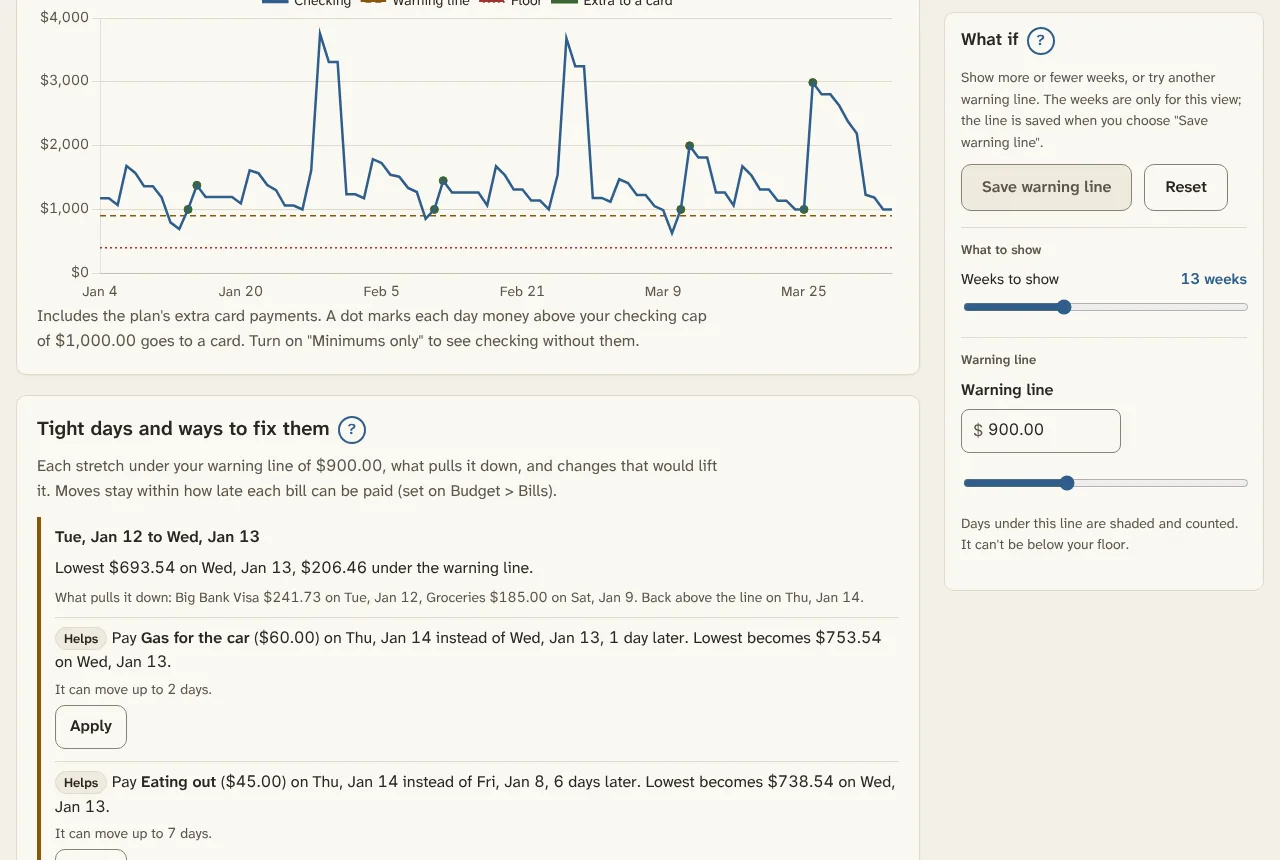
I have extra cash
For money that isn't in your numbers yet, like a tax refund or a bonus. Type the amount and choose Check it.
- Safety check first. The app checks that checking stays above your warning line, big costs coming up are covered, and goals marked "save for this first" are on track. If not, it says how much to keep and why.
- Then the best card. The rest is ranked across your cards by how much sooner you'd be debt-free, the interest saved and any minimum it frees.
- Plan this payment saves it with the card and the day. The plan and cash flow count it from that day.
The Plan sidebar
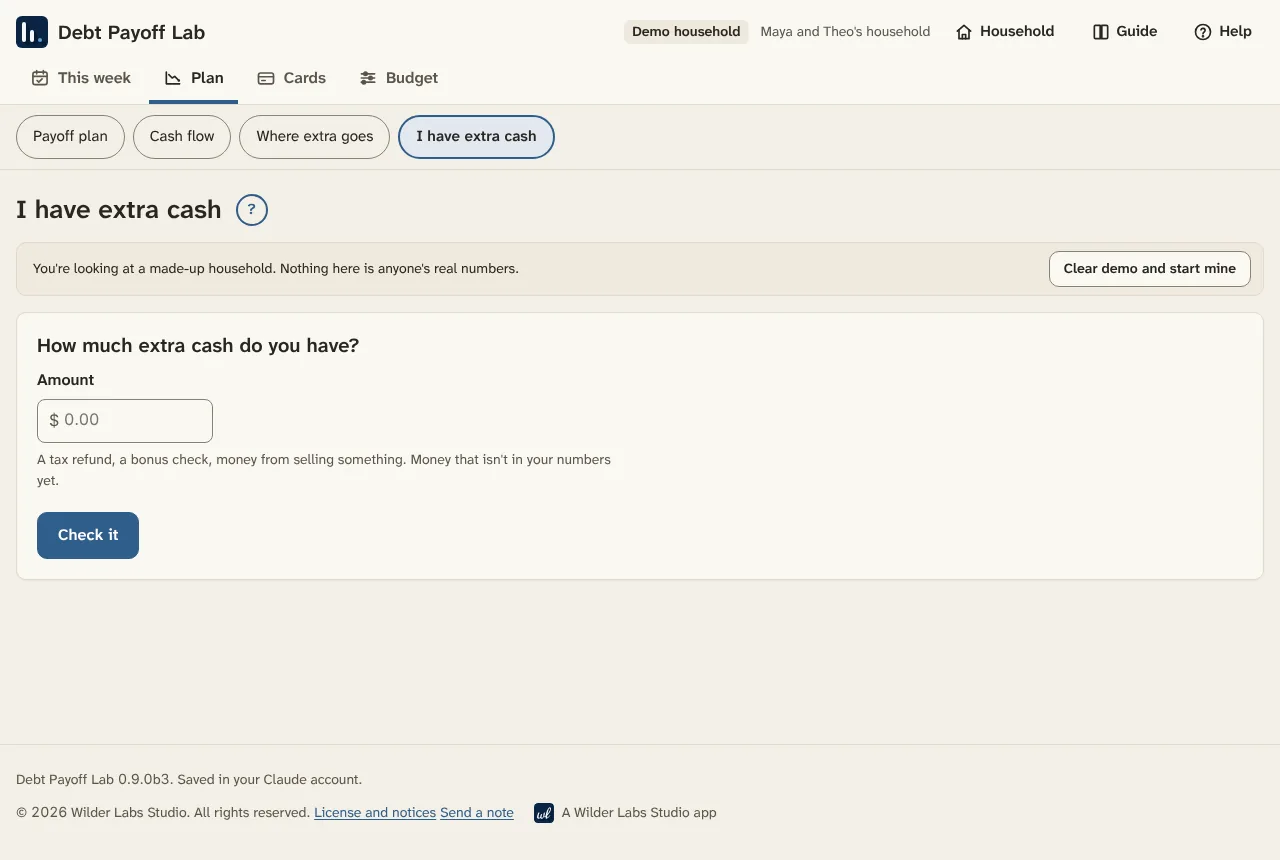
On a wide screen, a What if sidebar sits on the right. Try more extra each month, a different payoff order or a utilization goal, and the whole page redraws. Nothing saves until you choose Make this my plan. Reset goes back. On Cash flow, the sidebar sets weeks to show (4 to 30) and lets you try a warning line. On a phone, choose Show controls at the top of the page.

6. Cards
The Cards tab holds every card, with four sections: Cards, Available credit, Outside the plan and Statements.
Your cards
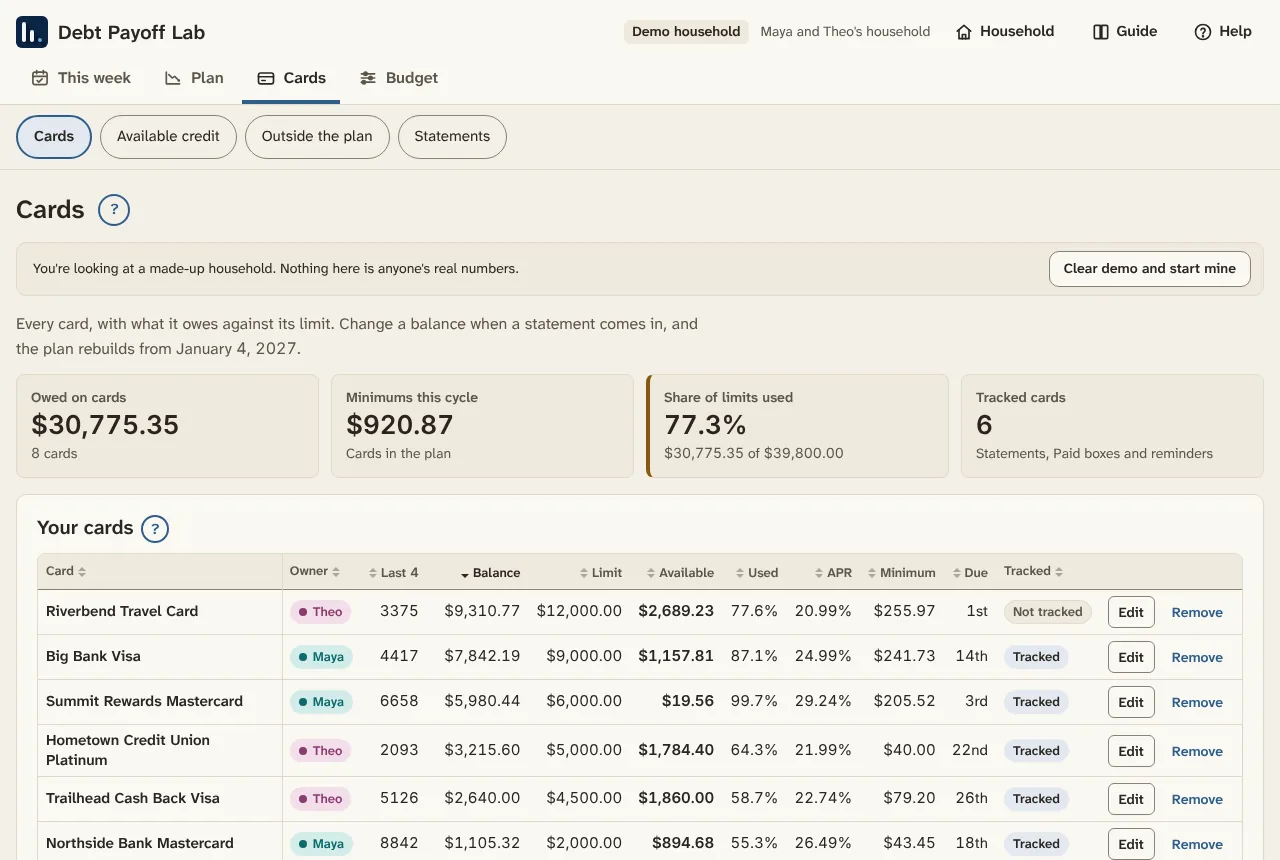
Each card shows what it owes against its limit, its rate, minimum and due day. The tiles above add up what you owe, the minimums this cycle, the share of your limits in use and how many cards are tracked.
- Add a card: name, whose it is, last 4 digits (optional), balance, limit, APR, minimum due this cycle and payment due day.
- Edit a card when a statement comes in. The plan rebuilds from your start date. If checking has changed too, update it in Household > Cash rules.
- More fields sit inside each card's form: statement closing day, a type label, a monthly fee, a promo rate, the minimum payment rule and the account it's paid from.
How minimums are worked out. This cycle uses the minimum on your statement. Later months use the card's rule: the larger of the smallest minimum, or a percent of the balance plus that month's interest, plus any monthly fee. The default is $35.00 or 1% plus interest. Example: a card owing $2,400.00 at 24.00% APR has $48.00 of interest in a month, and 1% of the balance is $24.00. Together that's $72.00, more than $35.00, so the minimum is $72.00.
Promo rates. Enter the promo rate, the day it ends and the rate after. Watch for deferred interest: some store cards charge all the promo's interest at once if any balance is left on the end date. The app doesn't add that charge, so check that the plan pays the card off in time. If it doesn't, I have extra cash can plan a payment to it.
Available credit
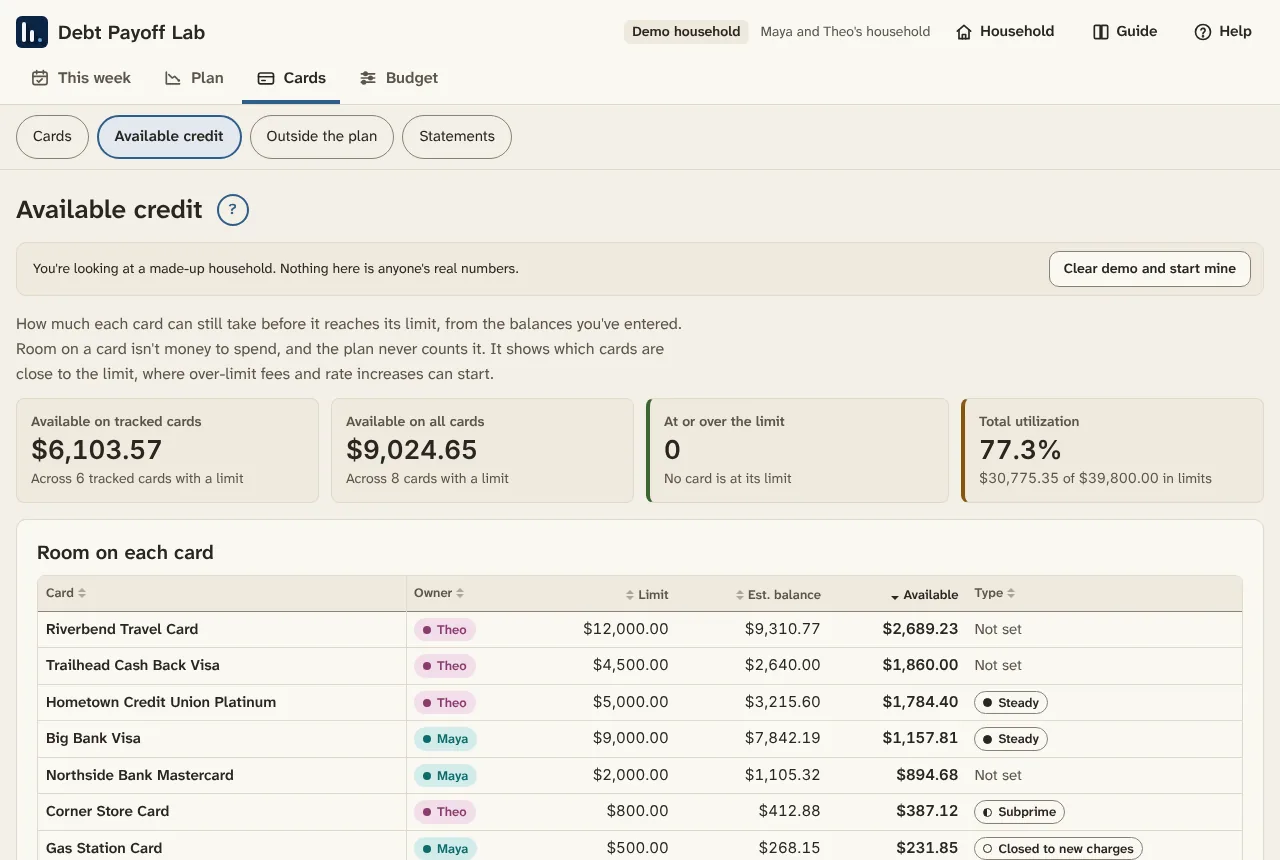
How much room each card has before its limit, cards at or over the limit, and total utilization. The type column is your own label (steady, subprime, closed to new charges). Room isn't money to spend; this page helps you spot cards near the limit, where over-limit fees and rate increases can start.
Outside the plan
Loans and debts in default or with a collection agency. They stay on the list, but the payoff plan leaves them out unless you move one in.
- Give each a name, whose it is, the kind, where it stands (current, behind, in default, in collections, charged off, settled or paid) and the balance.
- A monthly payment with a payment day comes out of checking on that day and shows on This week, the calendar and the cash flow.
- Move this into the payoff plan turns it into a debt the plan pays like a card. It needs a rate, a payment day and a minimum.
A debt in collections can feel heavy. You don't have to decide anything about it today. Putting it here keeps the full picture in one place.
Statements
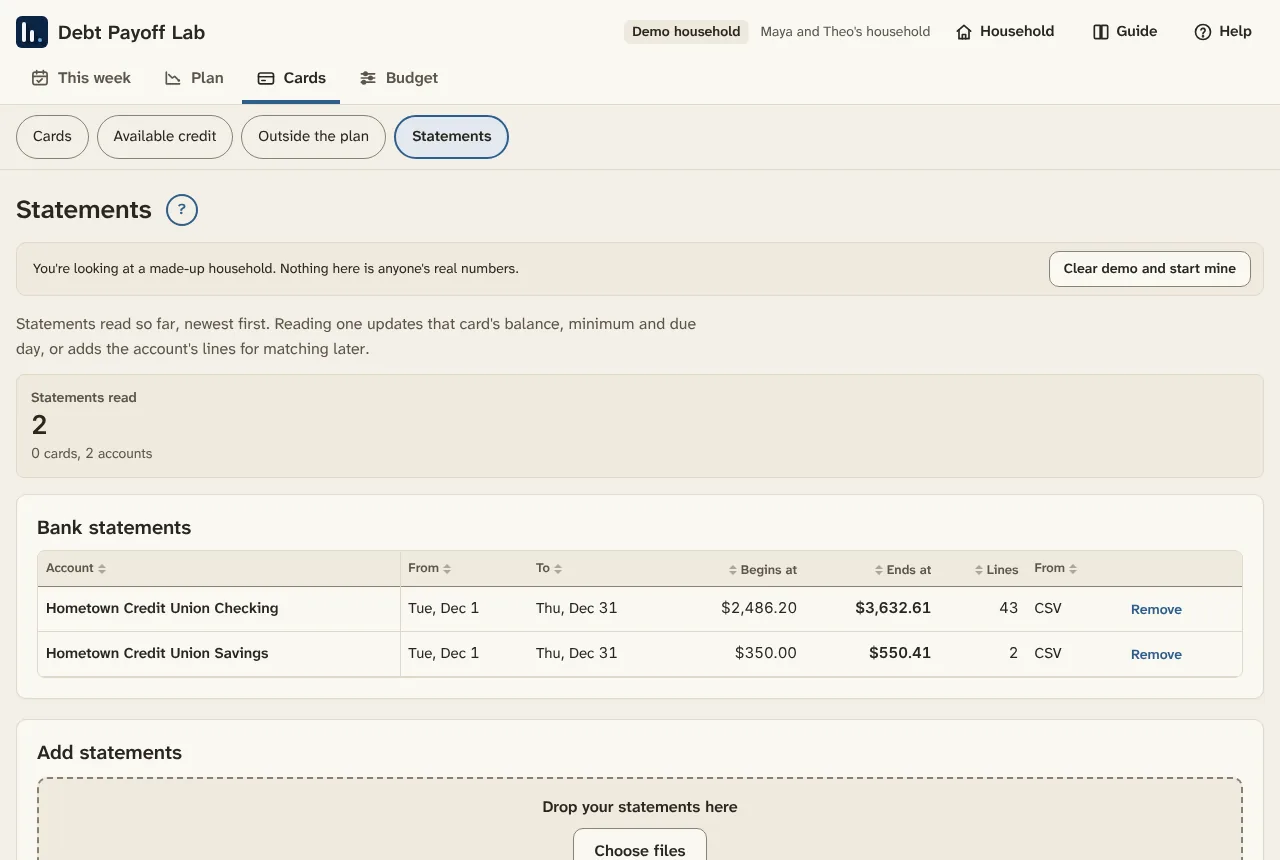
Uploading statements saves typing. Drop as many card and bank statements as you like at once.
- Files it reads: CSV, OFX and QFX right in the page. PDFs too: in the Claude version, PDFs and photos are read by Claude on your own account; in the desktop app, PDFs are read on your computer, and you can type the numbers if one can't be read.
- What it keeps: from a card statement, the balance, minimum, due and closing dates, rate, limit, and the interest and fees charged; from a bank statement, the dates, balances and each line. Only the last 4 digits of any account number, and never the file itself.
- Before anything saves, each file shows what was found and which card or account it goes to. Choose Looks right, or fix it first.
The tables above the drop zone show interest and fees per card. On many cards, a big share of the balance is interest, late fees and over-limit charges, and the tiles show how much.
Tracked cards
Each card and bank account has a Tracked box. Tracked cards get statement uploads, statement history, Paid and Autopay boxes and reminders. Every card counts in the plan whether it's tracked or not. In the free desktop app you track 6 cards and 2 bank accounts and choose which; see chapter 10.
7. Budget
Budget is where money in and money out live. It has six sections: Overview, Income, Bills, Spending, Bank, and Big costs and goals.
Overview
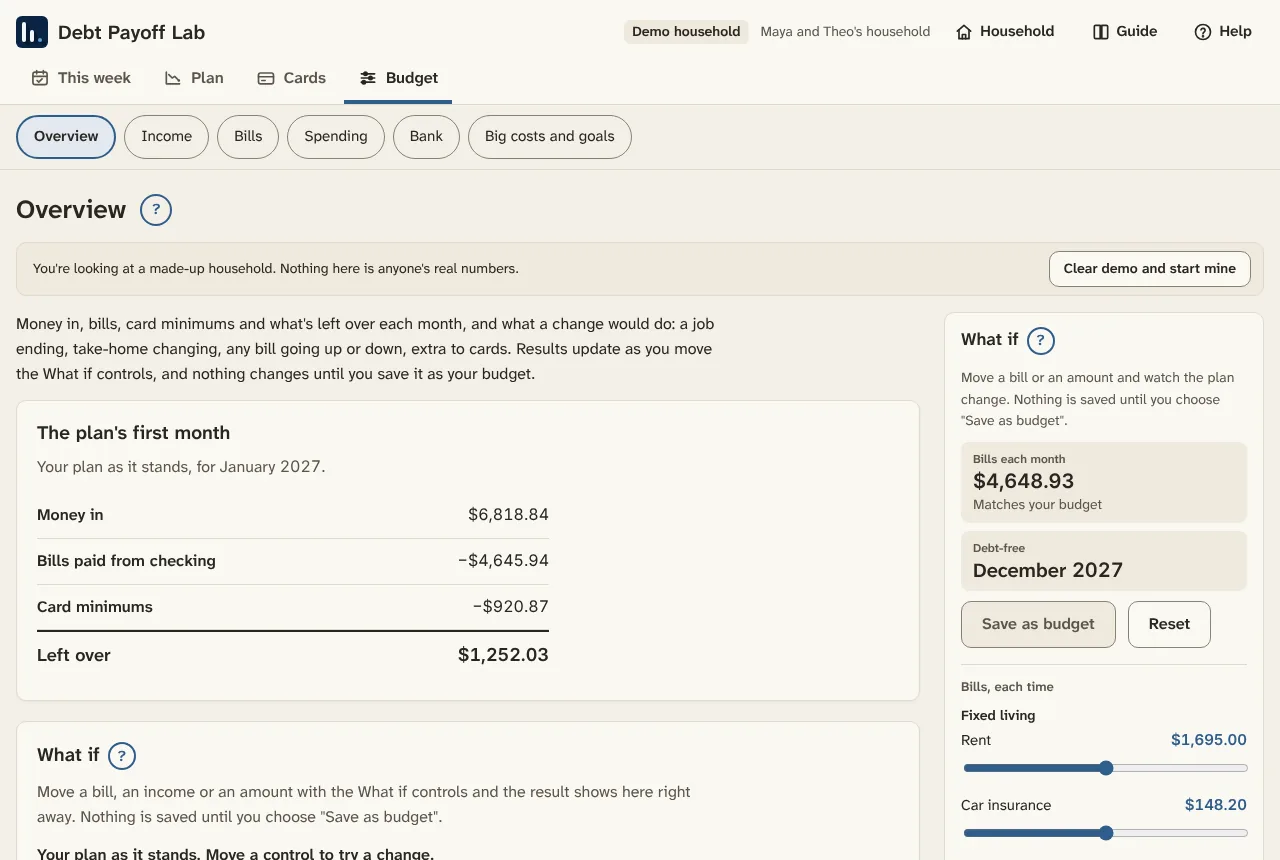
Each month shows four lines for the plan's first month: money in, bills, card minimums, and what's left over. When left over is below zero, it says so. What if shows what a change would do to your debt-free month, total interest and the lowest checking day over the next six months, with a six-month chart of checking.
The Budget sidebar
On Overview, Income, Bills, and Big costs and goals, a What if sidebar sits on the right (on a phone, choose Show controls).
- Every bill is a slider, grouped by bill group, from $0.00 to double its amount. A changed bill shows "changed" next to its amount. A bill saved at $0.00 is paused.
- Income: try a job ending on a date, or take-home changing by an amount per check.
- Cards and checking: extra to cards each month, the checking floor and the checking cap.
Results update as you move things. Nothing changes until you choose Save as budget. Reset puts everything back.
Add a line. Not every household's expenses look the same. Under the bills, open Add a line, type what it's for in your own words (pet food, storage unit), the amount, how often, the due day and the group, then choose Add line. It joins your budget right away as its own slider. To rename or remove a line, use the Bills page.


Income
Each person's take-home pay: the amount per check, how often it comes (weekly, every two weeks, twice a month or monthly) and the next payday.
- Take-home is what lands in the bank after taxes and deductions.
- Twice-a-month pay defaults to the 15th and the last day of the month; you can set your own second day.
- Paydays on a weekend or bank holiday move to the business day before. You can turn that off for an income.
- More income options: kind of income (paycheck, hourly, gig, benefits, other), "partial earnings reduce it by" for benefits, a last payday if it ends, and a change coming up with its date and new amount.
Logged income. When pay changes from check to check, log what came in. For hourly, gig and benefits pay, a logged check replaces the scheduled one for that payday; logging $0.00 means no check that week. Steady paychecks stay on schedule. Other money, like an odd job, adds to that day as extra.

Bills
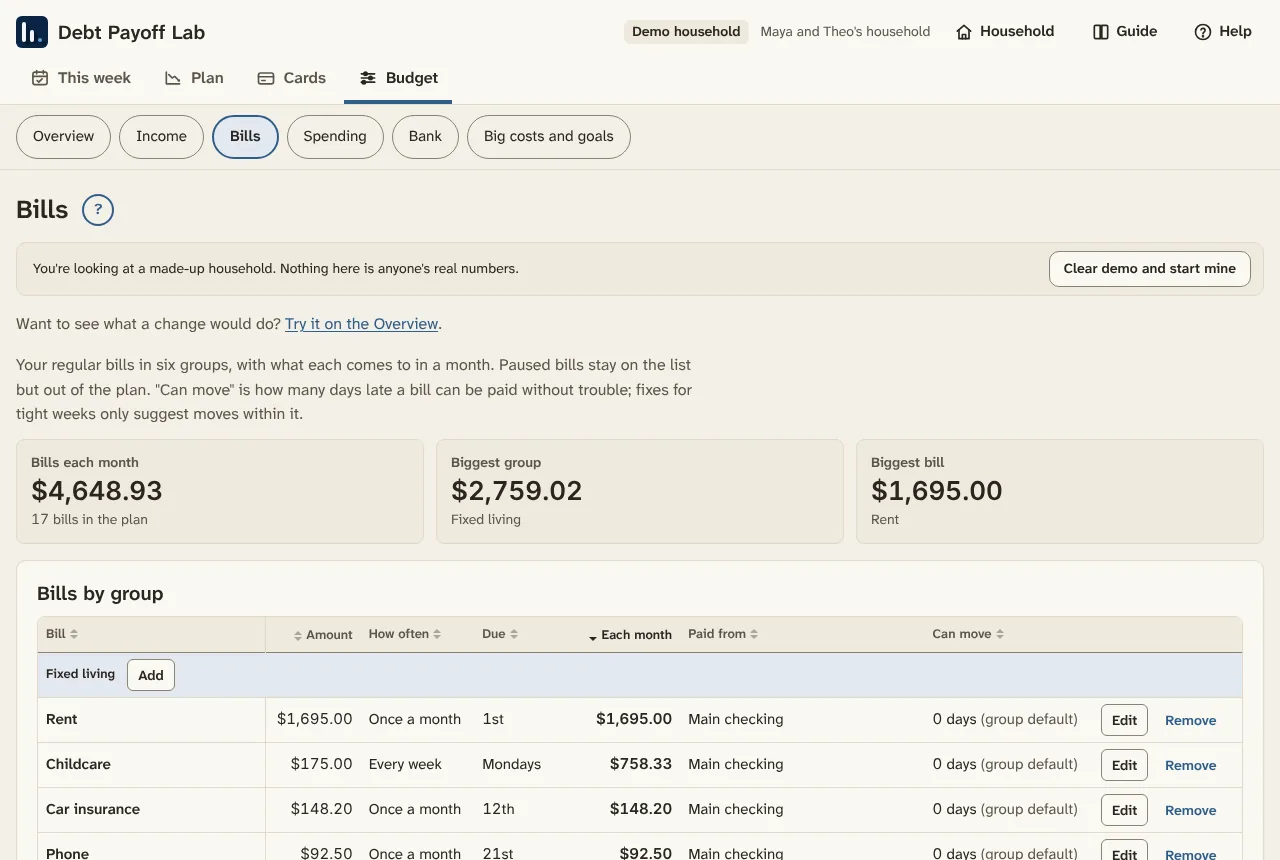
Your regular bills in six groups: fixed living, variable living, subscriptions, discretionary, debt payments, and annual or one-time.
- Each bill has an amount each time, how often (every week up to once a year), when it's due, and the account or card that pays it. A bill paid with a card adds to that card's balance.
- Each month turns every bill into a monthly amount, so weekly and yearly bills add up fairly.
- Paused bills stay on the list but out of the plan.
- Can move up to (days) is how late a bill can be paid without a fee or trouble. Fixes for tight days stay within it. If it's paid late holds a note about the risk, like "$15.00 late fee after 5 days".
- Budget each time, if it varies is for groceries, gas and the like.
Weekly items in variable living and discretionary count as everyday spending, so they don't show as payments due.
Spending
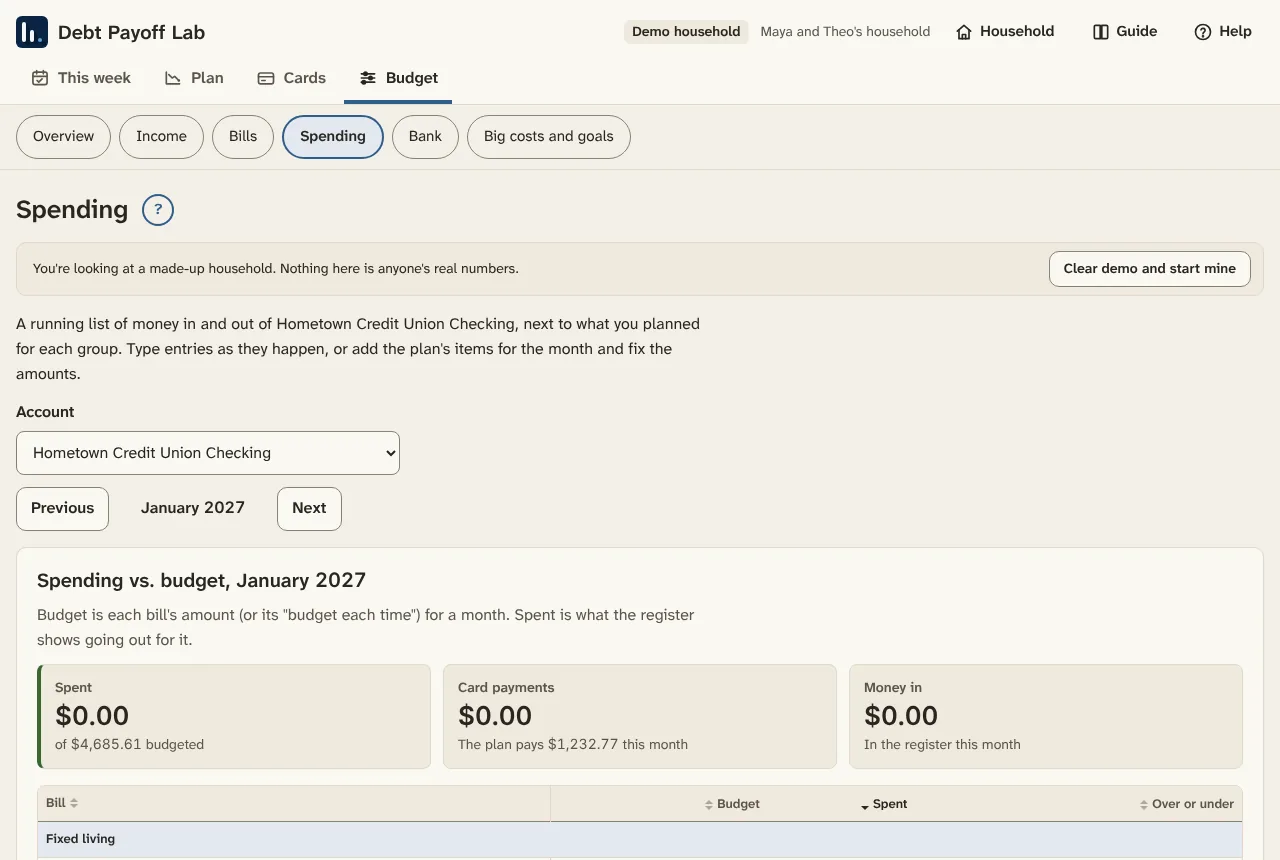
Spending vs. budget compares what went out this month with what you planned for each group. The register is a running list of money in and out of one account, with the balance after each entry.
- Pick the account and the month.
- Set a starting balance, or start it from a bank statement on Budget > Bank.
- Choose Add an entry for each purchase, bill or deposit.
- For main checking, Add planned items for this month brings in the plan's paydays, bills and card payments in one go. Fix any amount that came out different.
Reconciled entries are locked, so a finished month stays the way the bank showed it.
Bank
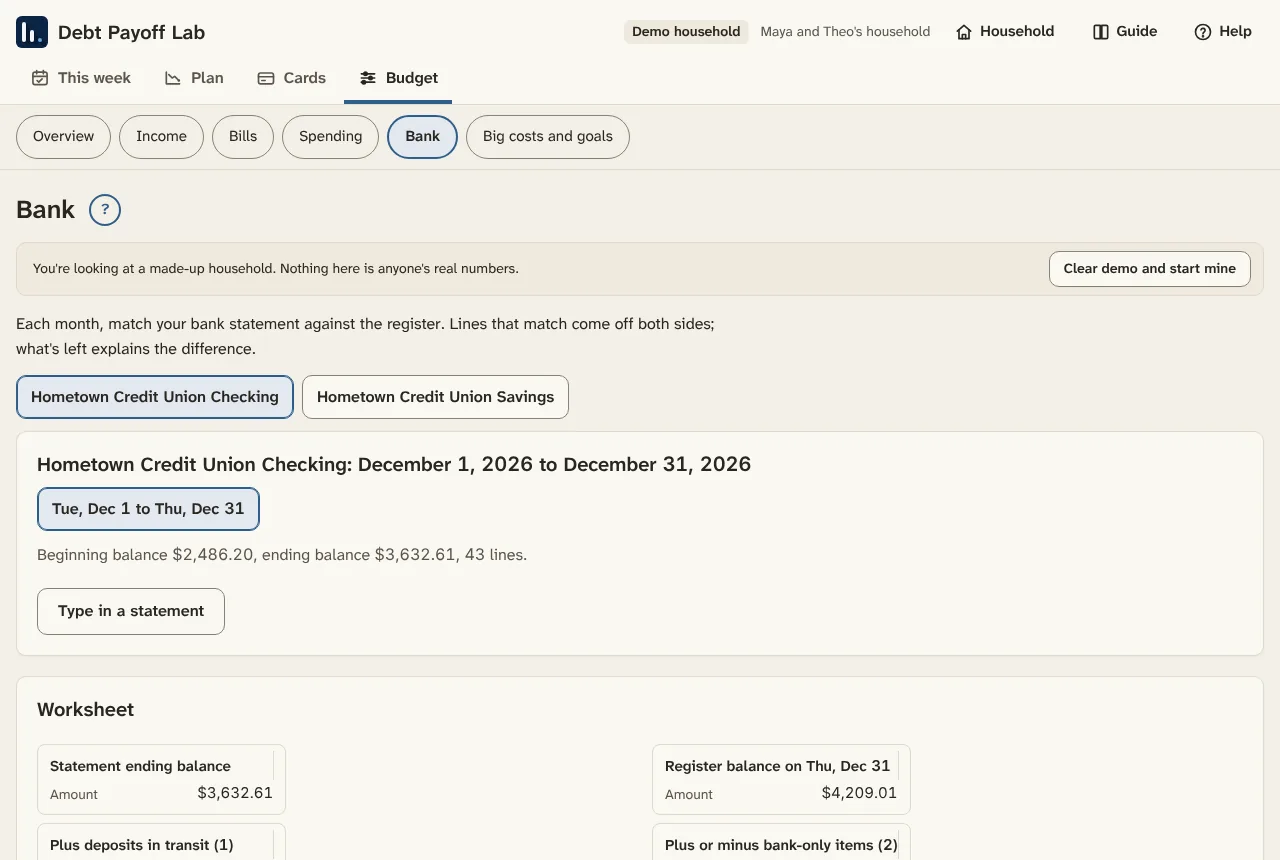
Reconciling matches your register against your bank statement until the two agree. It catches missed entries and charges you didn't expect. Do it once a month.
- Get the statement in. Upload it on Cards > Statements, or choose Type in a statement.
- Start the register from the statement's beginning balance, if it's new.
- Let it match. Lines match a register entry with the same amount within 3 days.
- Match the rest by hand, or choose Add to register for bank-only lines like a fee or an ATM withdrawal.
- Fix amounts that differ with Use the bank's amount.
- Read the worksheet. The bank side takes the statement's ending balance, adds deposits in transit and takes away outstanding payments. The register side adds or takes away bank-only items. When the difference is $0.00, they agree.
- Finish reconciliation. Bank-only lines go into the register and matched entries are marked reconciled.
Undo reconciliation reopens the newest finished statement if something needs changing. If it won't balance, a wrong starting balance, an amount typed differently or an entry in the wrong month explains most gaps.
Big costs and goals
Big costs are one-time costs you know are coming. Goals are amounts you want to build, like a starter emergency fund. Give each a name, an amount and a date if it has one.
- Save for this first, before extra goes to cards sets money aside on paydays until it's covered. Those savings moves show on This week and the calendar.
- Without it, a big cost comes out of checking on its date.
- Saved so far counts money already set aside.
Even a small emergency fund can keep a surprise bill off a card.
8. Household
Household, in the header next to Help, holds the settings behind everything else: Summary, People, Accounts and Cash rules.

Summary
Your household's name, the plan's start date, the card balances in the plan and how many of each thing are saved. The Your numbers panel says where they're saved and has the backup buttons and Start over.
People
The adults in the household, each with a display name and a color, and how money works in your house: joint, separate or mixed. Cards with no owner show as shared.
Second-account sweep is for a household where one person's pay lands in their own account first. With it on, that account pays the bills and cards tied to it from each check, keeps the amount you choose, and moves the rest to main checking on payday. It's off unless you turn it on.
Accounts
Where money sits: main checking, savings, and any account someone pays bills from. Main checking is the one the cash flow follows. Only the last 4 digits are saved. Anything with no account set uses main checking.
Cash rules
Cash rules set how the plan treats checking. They feed the payoff plan and the cash flow.
| Rule | What it does |
|---|---|
| Checking floor | The lowest you want checking to go. Any amount from $0.00 up. Some people keep $100.00, some keep more. |
| Warning line | Days under it are flagged with ways to fix them. It can't be below the floor. |
| Checking cap | When checking would stay above it through the next payday, the extra goes to your cards that day. A higher cap keeps more cash in checking. |
| Checking balance and start date | Where the plan and cash flow begin. Usually today. |
| Pay cards this many days early | Card payments go out this many days before the due date, leaving room for slow transfers. |
The space between the floor and the cap is your cushion. In a month that comes up short, the plan uses it before saying there's no money left over. Update the start date and checking balance whenever you update your cards, so both start from the same day.

Backups
A backup file holds every number you've entered. Use it to move to a new computer or browser, to carry numbers from a shared link into your own copy, or to be safe.
- Save a backup file makes a file named with the date, like debt-payoff-lab-backup-2027-01-04.json.
- Load a backup replaces the numbers saved now with the file's.
- The same file works in the desktop app and the Claude version.
The file holds your balances, bills and income, with only the last 4 digits of accounts. Keep it somewhere private.
Start over
Start over erases every number saved in this copy and takes you back to the welcome page. It asks first: choose Yes, erase everything or Keep my numbers. It can't be undone, so save a backup file first if you might want the numbers back. It's handy when you typed in test numbers and want a clean start. From the welcome page you can start setup or load the made-up household again.
9. Your weekly and monthly routine
Ten minutes a week and half an hour a month keep the plan close to real life. Updating once a month matters more than updating perfectly.
Each week
A good day is the day after a payday.
- Open This week and read "Are we good right now?"
- Pay what's due. Check Paid as each payment goes out, or Autopay for ones that pay themselves.
- Look at From earlier days for anything not checked off.
- If pay changes week to week, log the checks that came in on Budget > Income.
- Add the week's spending on Budget > Spending, or use Add planned items for this month and fix the amounts.
- Open Plan > Cash flow and look at the next two weeks. If a tight stretch shows up, the fixes are right there.
- If a card statement closed this week, upload it on Cards > Statements or type the new balance on the Cards tab.
If your numbers are saved in a browser, save a backup file at the end.
Each month
After your statements are in:
- Upload each card's newest statement on Cards > Statements, or type each new balance and minimum on the Cards tab.
- Open Household > Cash rules. Set the start date to today and the checking balance to what checking holds today. The plan and cash flow rebuild from there.
- Upload your bank statement and reconcile it on Budget > Bank.
- Look at Budget > Spending for last month: each group against what you planned.
- Check Budget > Bills and Big costs and goals for anything that changed.
- Look at This week > Progress to see how far you've come.
- Save a backup file.
10. Privacy, Free and Pro
Your numbers stay with you. The app has no logins of its own, no tracking, and sends nothing to the people who make it.
Where your numbers are saved
- Your own copy in Claude saves to your Claude account. Only you can see the numbers, even if you share the copy, and they follow you to any device where you're signed in: claude.ai, the Claude desktop app or the Claude mobile app.
- A shared link (someone else's copy) saves only in that browser, on that device.
- The desktop app saves everything in one file on your computer. Windows: C:\Users\(your name)\AppData\Local\PayoffLab. Mac: your home folder, then Library, Application Support, PayoffLab.
The footer of every page says where that page's numbers are saved. Statement files are read and let go; the files are never saved. Only the last 4 digits of any account number are kept, never full numbers, logins or passwords.
Free and Pro
Every version has every feature. The difference is how many cards and accounts get the tracking tools, and how many expense lines of your own you can add.
| Free desktop (beta) | Pro desktop (coming later) | Claude version (beta) | |
|---|---|---|---|
| Cards in the plan | All of them | All of them | All of them |
| Tracked cards | 6 | Every card | Every card |
| Tracked bank accounts | 2 | Every account | Every account |
| Your own expense lines | 10 | No limit | No limit |
| Price | Free | One-time purchase, price coming later | Free during the beta, with a free Claude account |
- Tracked cards get statement uploads, statement history, Paid and Autopay boxes and reminders. Tracked bank accounts get statement uploads, the register and reconciliation. To swap which ones are tracked, turn Tracked off on one and on for another.
- Your own expense lines are lines you add and name yourself. The starter kinds (rent, utilities, phone, insurance, groceries, childcare, subscriptions and so on) don't count. At 10, the app suggests combining a few small ones, like "Other subscriptions", so your budget still adds up.
- Pro will be a license key you buy once and enter in the desktop app. Its price is coming later. It's checked on your computer, with no account. Beta testers with a code get no limits now, and get Pro free for 6 months when it launches.
Nothing is deleted when tracking changes. Statements, register entries and check-offs stay saved and in every backup.
11. Troubleshooting and common questions
Do I need a Claude account? For the Claude version, yes. A free account works. Sign up at claude.ai, then open the app from the Debt Payoff Lab page and make your own copy. The Windows desktop app needs no account.
Do I have to make a copy? Yes, to keep your numbers. The shared link is for looking around. Numbers typed there stay only in that browser. Your own copy saves them to your Claude account.
My numbers are gone. You were probably on the shared link instead of your own copy. Numbers typed on the shared link stay only in that browser. Look for the yellow banner at the top: if it's there, you're on the shared link. Open your own copy from your bookmark. If you never made one, make one now (chapter 2) and load a backup file if you saved one.
Will my copy get new features? Not on its own. Your copy stays the version you copied. To move to the newest version, save a backup file, make a new copy from the shared link and load the backup there. Chapter 2 has the steps.
Does it work on my phone? Yes. Open your copy in the Claude mobile app on iPhone or Android, or on claude.ai in your phone's browser. Every page fits a phone screen, with the four tabs along the bottom.
The plan shows no debt-free date. The money coming in doesn't cover the bills and minimums yet. A lot of people land here, and it doesn't mean anyone did something wrong; interest and fees keep adding every month. First check the numbers on Budget > Overview: a missing paycheck, a monthly bill set to weekly, or a minimum typed too high can cause it. Then use the Budget sidebar to try a bill lower, more income, or a big cost moved later.
Checking dips under my warning line. Open Plan > Cash flow and read Tight days and ways to fix them. Apply a bill move, or move money in from savings for those days.
My numbers look old. Update each card's balance from its latest statement, then set the start date and checking balance in Household > Cash rules to today.
Bank won't reconcile. Check the register's starting balance, look for an amount typed differently, and look for an entry in the wrong month. Bank-only lines like fees need Add to register.
I typed in test numbers and want to start clean. Household > Summary > Start over. Then choose Start with my own, or Try it with made-up numbers.
I can't see the sidebar. On a phone or tablet the What if controls fold into a section at the top of the page. Choose Show controls.
The Ask box isn't there. It works only in your own copy of the Claude version. In the desktop app, use Help's search and glossary.
Should we try a hardship program, a settlement or credit counseling? The app doesn't recommend them, but Help describes each with its trade-offs: cards are often closed, credit can take a hit, and some programs require closing cards. Get the terms in writing before agreeing to anything.
Does the app suggest a balance transfer or a loan? No. It never suggests new credit, balance transfers, consolidation loans, personal loans or borrowing from retirement. It works with the money you have.
Where do I get more help? The Help link in the header has a topic for every page, a glossary and a search box. Every page title has a ? that opens its topic.
