
Wilder Labs Studio / Sim Tools
Sim Data Manager user guide
Sim Data Manager is a research tool for the eHorseRacing sim. It runs on your own Windows PC and keeps every race you load in one database you can search in a moment. This guide covers what it does, one chapter at a time.
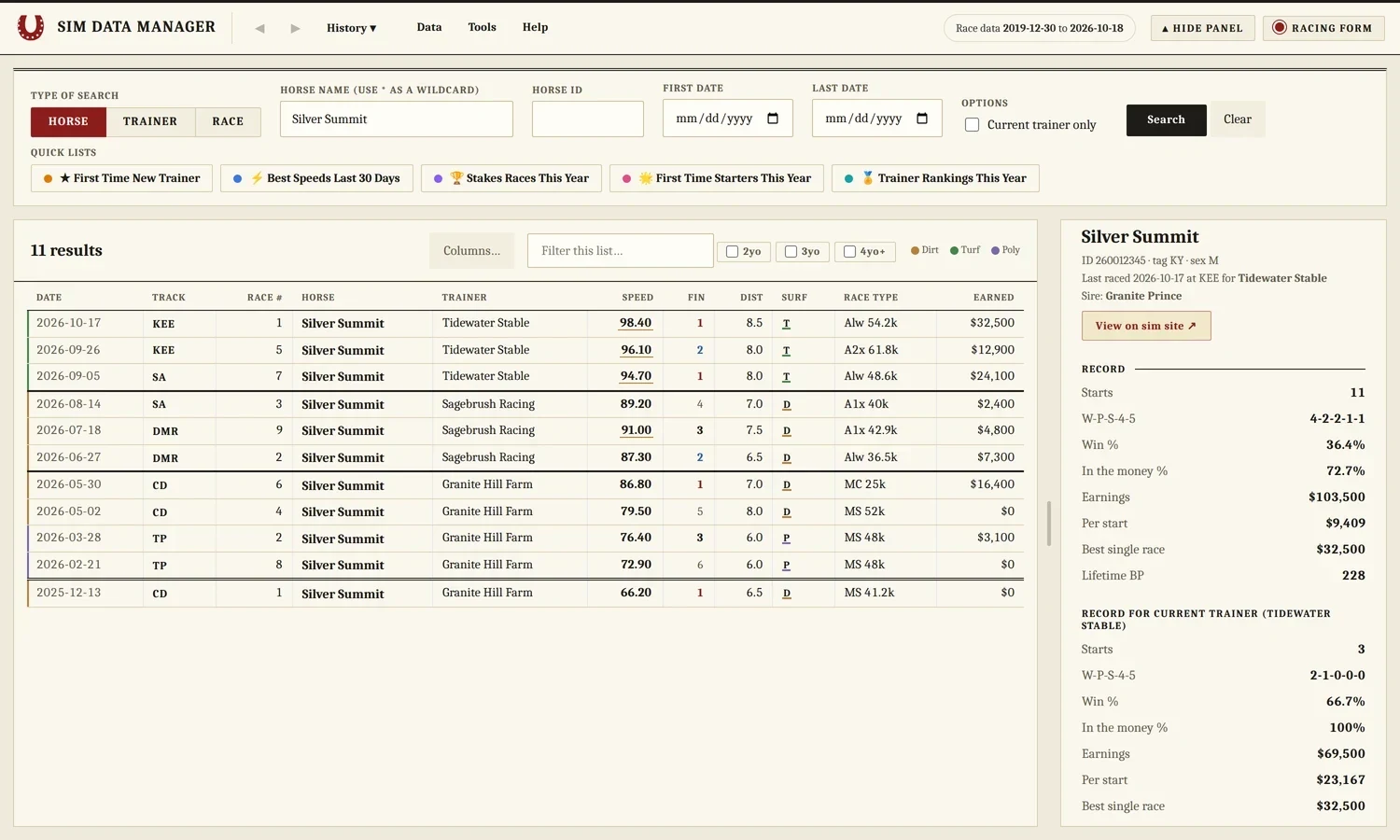
The screenshots in this guide use invented horse and stable names.
Chapter 01
Install
SDM does not use an installer. It is a folder you unzip and run from, and it carries its own copy of Python, so there is nothing else to download. Setup takes a few minutes.
What you need
- Windows 10 or Windows 11.
- Google Chrome or Microsoft Edge. Edge comes with Windows. SDM opens in its own app-style window in whichever one you have.
- An internet connection for loading race data. After that, searching works offline.
- You do not need to install Python. The folder already holds the version SDM uses, and it stays inside the folder. It does not touch anything else on your PC.
Step by step
- Download the zip file. Use the link where you found this guide. Allow a few minutes if the file is large.
- Pick a home for it. Make a plain folder such as
C:\SimDataManageror a folder inside Documents. Do not use Program Files, because SDM saves its database inside its own folder and needs to write there. A folder that OneDrive syncs is a poor choice too, since the database is a large file that changes. - Unzip it. Right-click the zip file and choose Extract All, then point it at your folder. Do not run SDM from inside the zip. Windows will open the files but the program will not work from there.
- Open the unzipped folder. You will see
Sim Data Manager.bat,Sim Data Manager (show errors).bat, apythonfolder and asdmmodernfolder. Leave all of them where they are. - Run it. Double-click
Sim Data Manager.bat. The SDM window opens in a few seconds. - If Windows warns you, say yes to running it. Windows often shows a blue "Windows protected your PC" box for files that came from the internet. Click More info, then Run anyway. You only do this the first time.
- Load race data. The first screen is empty. Choose
Data → Get New Race Dataand press Download and merge. See Chapter 4.
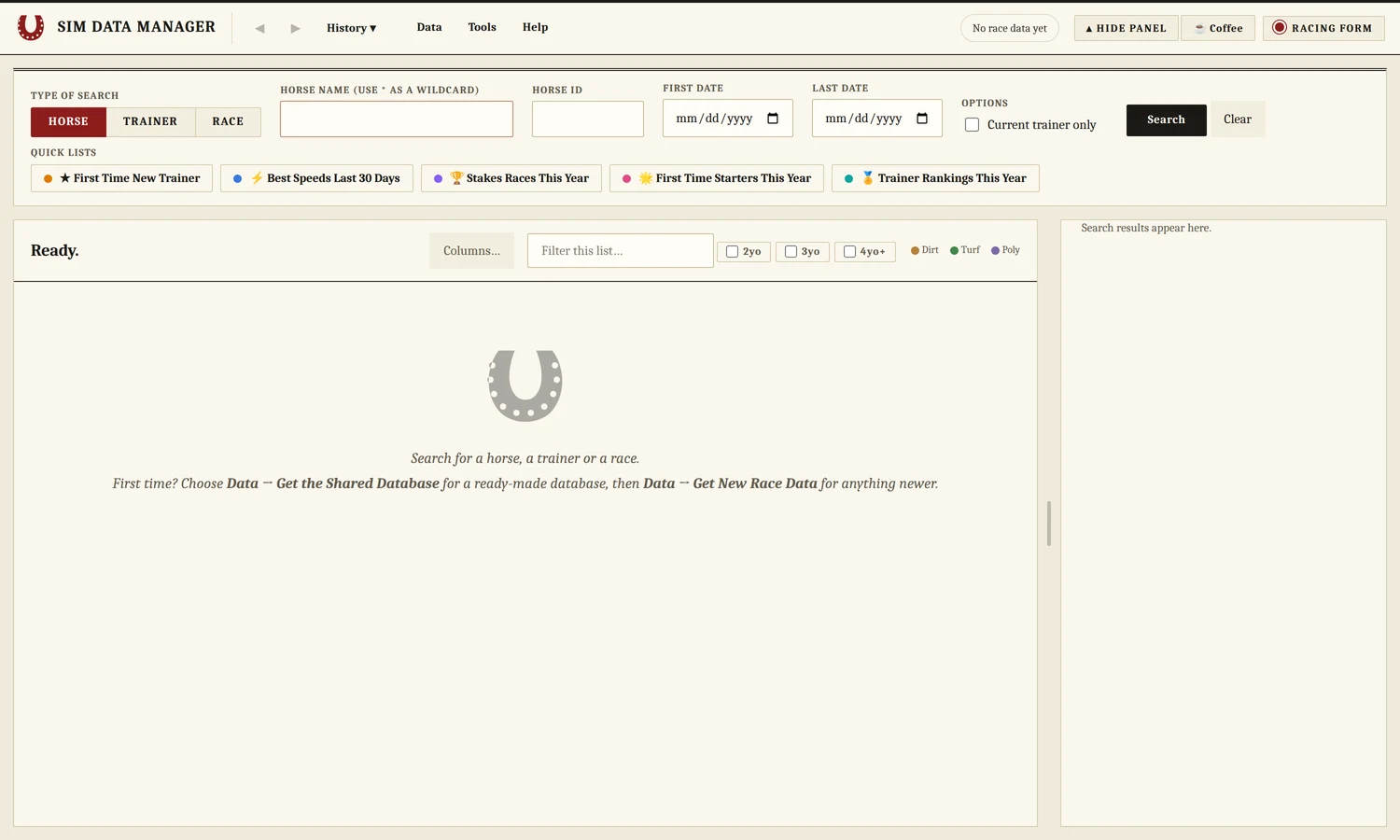
What you should see after step 5: an empty window waiting for race data.
If it does not open
Double-click Sim Data Manager (show errors).bat instead. It keeps its console window open and prints what went wrong. If you closed SDM a moment ago, wait about 30 seconds and try again. If the zip was not unzipped first, extract it and run the file from the new folder.
Make it easy to find
Right-click Sim Data Manager.bat, choose Show more options, then Send to and Desktop (create shortcut). Double-click the shortcut any time you want to start SDM.
Update to a newer version
- Once a day SDM checks for a new version. When one is out, a message tells you what changed and asks before it does anything.
- Press Install update. When it finishes, press Restart now and the window reloads with the new version.
- To check straight away, choose
Help → Check for Updates.
Only the program files are replaced. Your race database, saved searches and settings stay as they are, and the old program files are kept in a backup folder until the next update. Not now closes the message for now, and Skip this version stops it asking about that version.
Move to another computer
Close SDM, then copy the whole SDM folder to the new PC, or to a USB drive and from there to the new PC. Run the .bat file from the new location. Nothing else needs installing.
Remove it
Close SDM and delete its folder. If you want to keep your race data, copy sdm.db somewhere safe first.
Chapter 02
What it is
Sim Data Manager (SDM) is a research tool for the eHorseRacing sim. It runs on your own Windows PC and keeps every race you import in one database, so you can look up a horse, a trainer or a race and compare speed figures in a moment. It is the modern successor to Super Sim Searcher.
SDM is a small program that opens in its own Chrome or Edge window. Your race database sits in the program folder on your computer. Nothing is stored online, and nothing is uploaded unless you choose to share your database yourself.
What SDM does not do
It never logs in to the sim, makes claims, enters races or buys anything, and it never connects to ehorseracing.com. Everything it shows comes from the race database on your PC, which you update each week from Denovo’s weekly race files. The project has a test that fails if the program ever tries to reach the site.
Chapter 03
Quick start
Four steps from a running SDM to your first search. If you have not installed it yet, read Chapter 1 first.
- Start the program. Open the SDM folder and double-click
Sim Data Manager.bat. A window opens. If nothing opens, double-clickSim Data Manager (show errors).batinstead and read the message it prints. - Get race data. In the window, choose
DatathenGet New Race Data. Leave the settings alone and press Download and merge. The first run takes a few minutes because it fetches every weekly pack. - Check the dates. When it finishes, the bar at the top reads "Race data" followed by the first and last day you now have.
- Search. Leave the search type on Horse, type part of a name with
*as the wildcard, for exampleSlow*, and press Search.
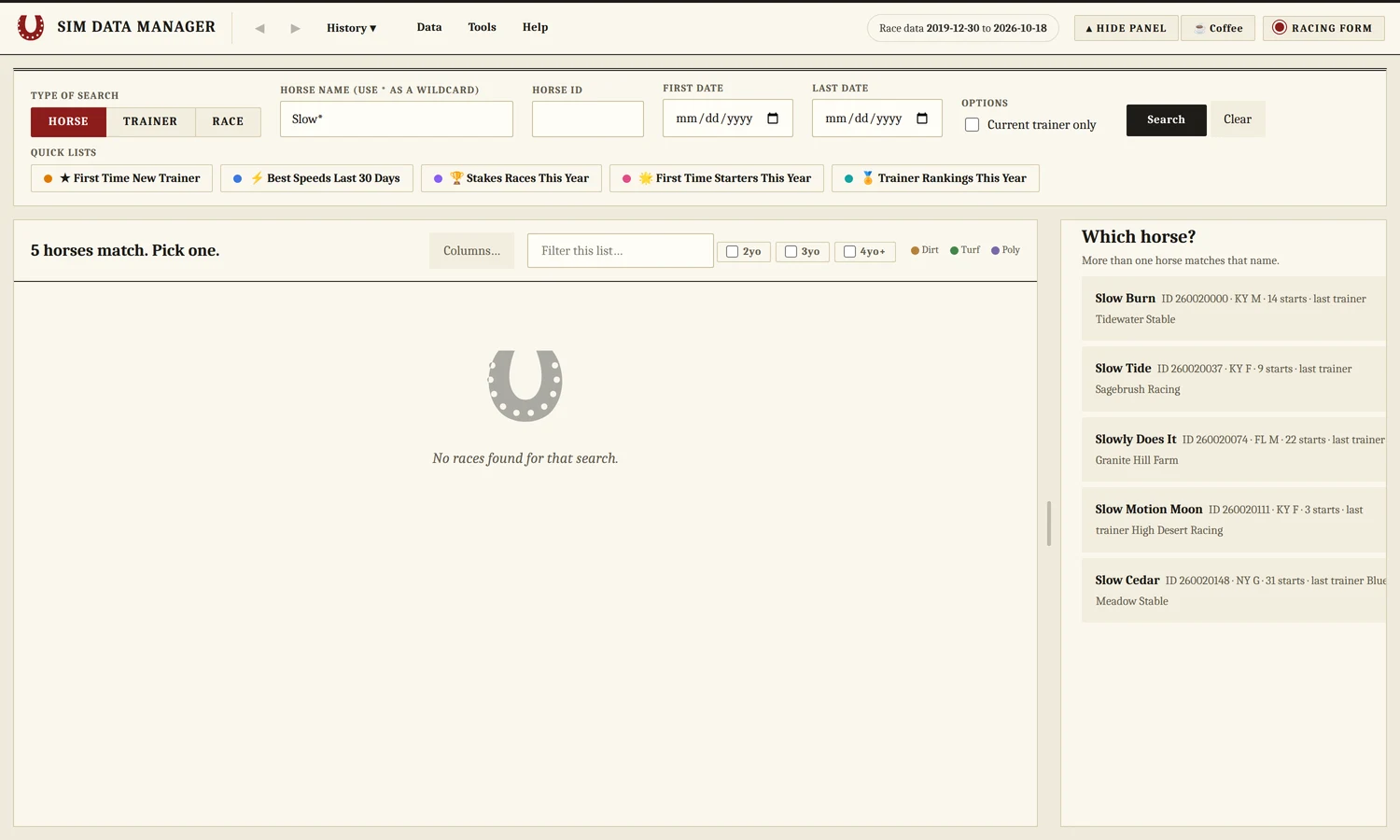
A search that matches several horses asks you to pick one.
When you are done, close the window. The program shuts itself down a few minutes later. If you want to start it again right away, wait about 30 seconds first.
Chapter 04
Getting race data
SDM is only as current as the data you load. Race data comes in weekly packs, one file per week with seven racing days in each. Everything you load is merged into one database, and loading a day twice never makes duplicates.
Weekly packs from the archive
Choose Data → Get New Race Data. The top line tells you how far your race data runs, with a link to open the denovo archive in your browser. SDM downloads the packs you do not have and skips the ones you do. Each pack is about 1 MB. Packs from before 2020 are often missing, so the recommended start is January 2020.
- Start from sets how far back to go: January 2020 onward (recommended), Everything the archive has, or Last 10 weeks. Older packs are mostly missing and get skipped.
- Repair: download every pack again, even ones I already have. Use it if a pack was updated or a week looks wrong. Nothing is doubled.
- Download new weekly packs by themselves when the app starts. Tick it and SDM stays current without the pop-up.
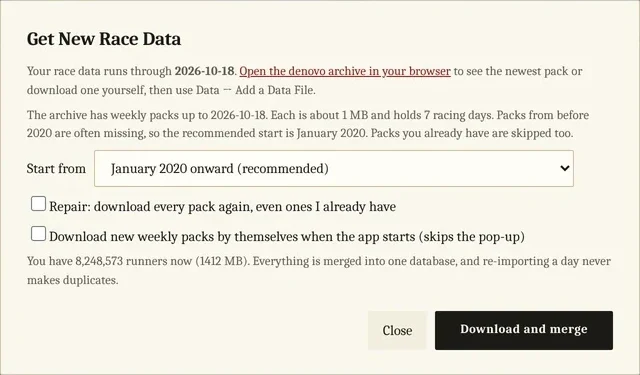
Get New Race Data. The last line shows how many runners you have and how big the database is.
Check you are up to date
The bar at the top of the window shows the dates your database covers. Click it, or choose Data → Open denovo Archive in Browser, to open the archive in your own browser and compare. If the archive has a newer week, run Get New Race Data again.

The top bar. The dates are the first and last racing day in your database.
Add a pack by hand
If you downloaded a pack yourself, choose Data → Add a Data File and pick it. SDM accepts the .7z exactly as downloaded, or the .mdb or .zip inside it.
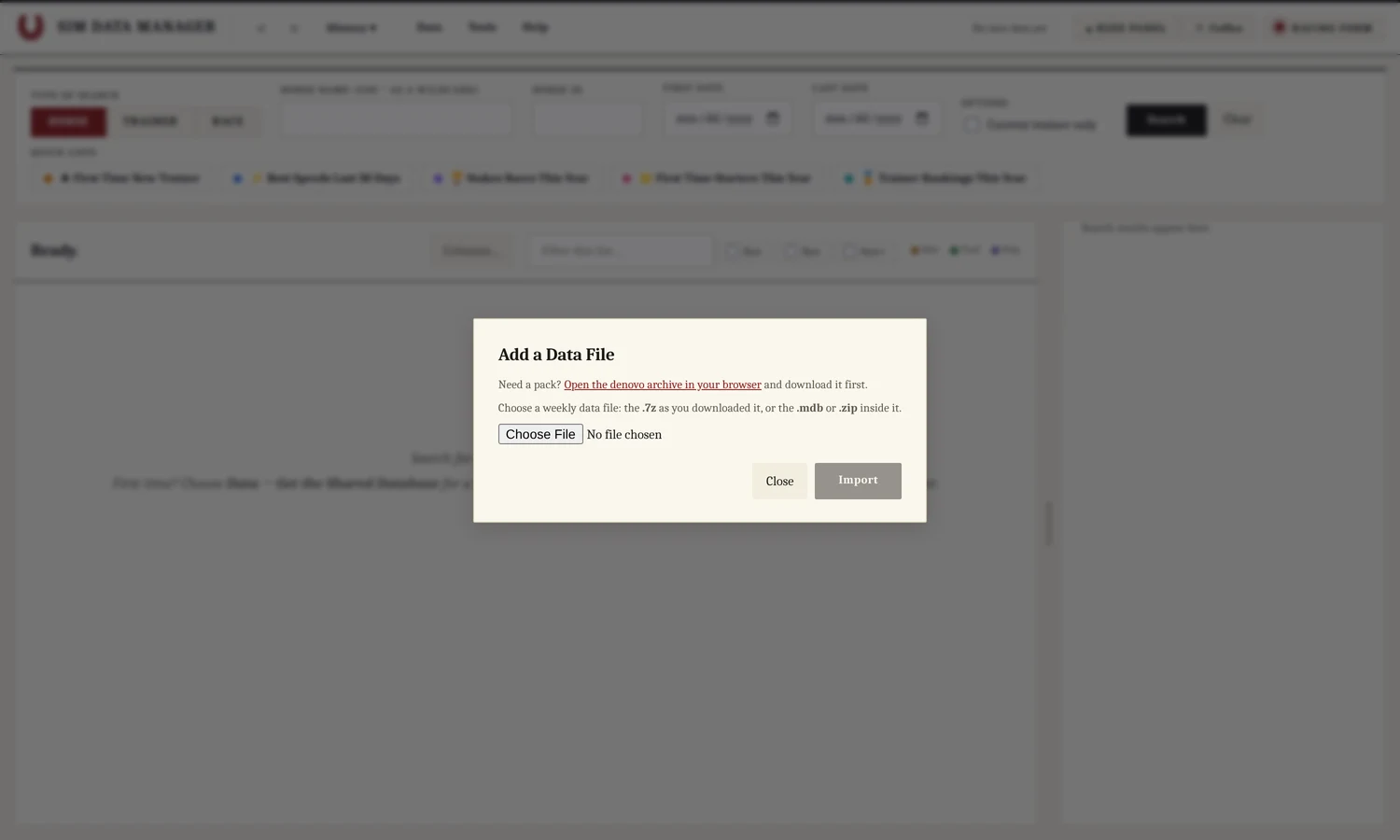
Add a Data File.
The shared database
Get the Shared Database downloads a ready-made copy of the race database and uses it in place of yours. The link box already holds the official copy on GitHub, so you can press Download and install without changing anything. Your settings and saved searches are kept, and your old database is saved next to it as sdm-before-shared.db. Races you added yourself that are newer than the shared copy are not carried over, so run Get New Race Data afterwards.
A group of players can keep its own master copy instead. Paste a Google Drive folder link into the same box. If that folder also holds the weekly race packs, Get New Race Data takes new packs from it too.
Share Database to Google Drive goes the other way. It makes a zipped copy of your race data and writes it over the old copy in a folder you pick. Point it at a folder inside Google Drive for desktop and Drive uploads it with the same share link every time. Your settings and saved searches are left out.
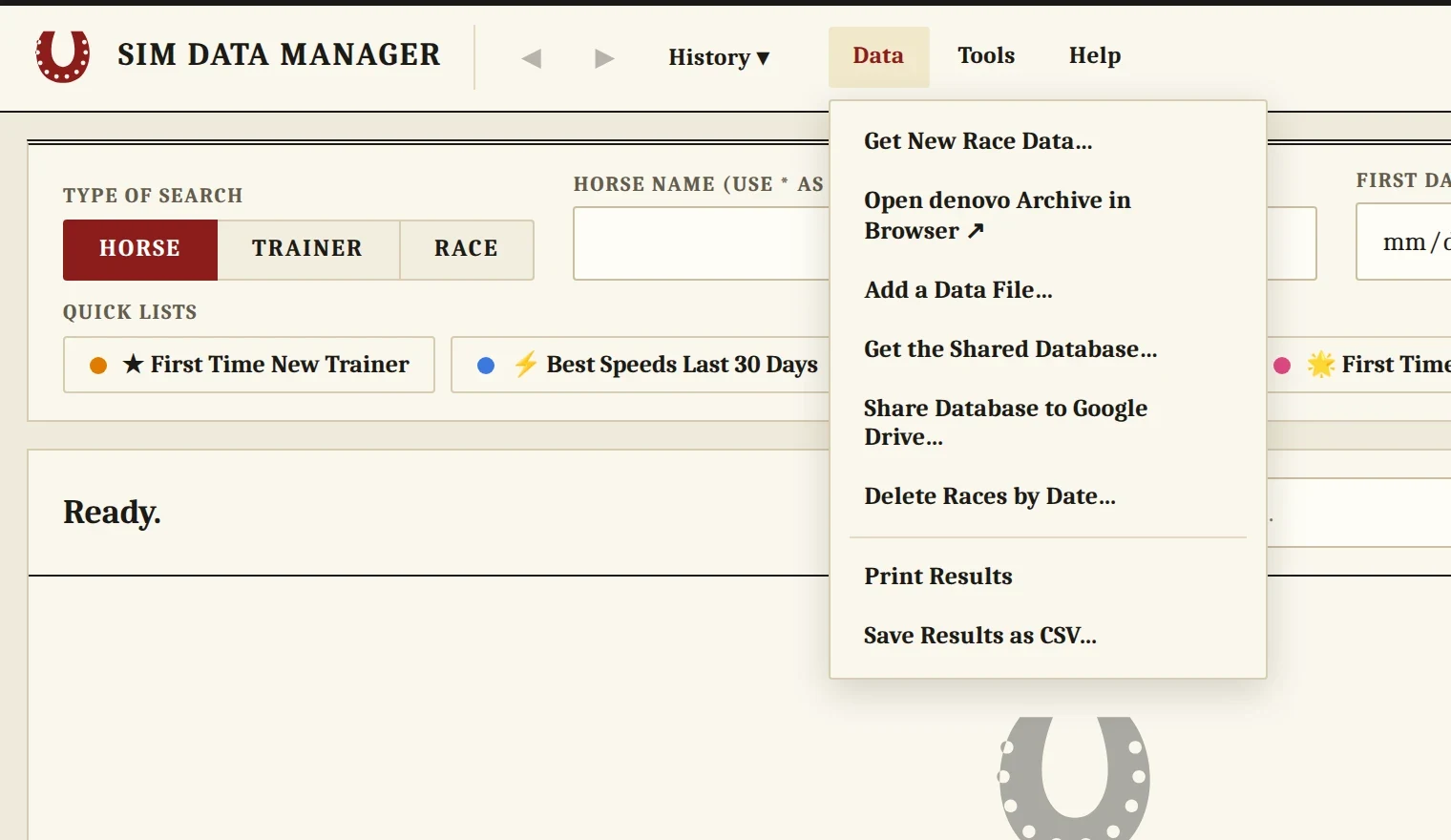
The Data menu.
Remove races you do not want
Data → Delete Races by Date removes every race between two dates. It tells you the range your database holds before you pick.
Chapter 05
Searching and reading results
Every search starts at the top of the window. Pick a type, type a name or number, and press Search. The First date and Last date boxes narrow any search to a stretch of racing days.
Horse, Trainer and Race
- Horse takes a name or a horse ID. Use
*as a wildcard. If more than one horse matches, SDM lists them and you click the one you want. Tick Current trainer only to show only the races under the trainer who raced the horse last. - Trainer takes one trainer or several separated by commas. Current horses lists the horses whose most recent start was for that trainer within the last 180 days. This year only counts races from January 1.
- Race takes a race number such as
10295.9614. The part before the dot is the sim day, the first two digits after it are the track, and the rest is the race. So 10295.9614 is day 10295, track 96, race 14.Tools → Track Codeslists the track numbers.
A horse search. Each row is one race. The panel on the right is the horse's record.
Reading the grid
Each row is one run. The colored bar at the left edge shows the surface: tan for dirt, green for turf, purple for poly. The finish column shows a badge, with gold, silver and bronze for the first three places. Click a row to fill the side panel. Click any column heading to sort by it.
- Filter this list narrows the rows on screen as you type.
- 2yo, 3yo, 4yo+ keeps only horses of those ages. The age is the horse's age on the day of the race. Tick none to see every age.
- Columns opens a window with a tick box for each column. Untick the ones you do not use, and use the arrows to move a column, or drag its heading in the list. Show all, original order puts everything back. Drag the thin line at the edge of a heading to change the width, and double-click a heading edge to reset all widths. SDM remembers your layout.
- Alt+Left and Alt+Right step back and forward through your earlier lists, like a browser. The History menu jumps to any earlier list.
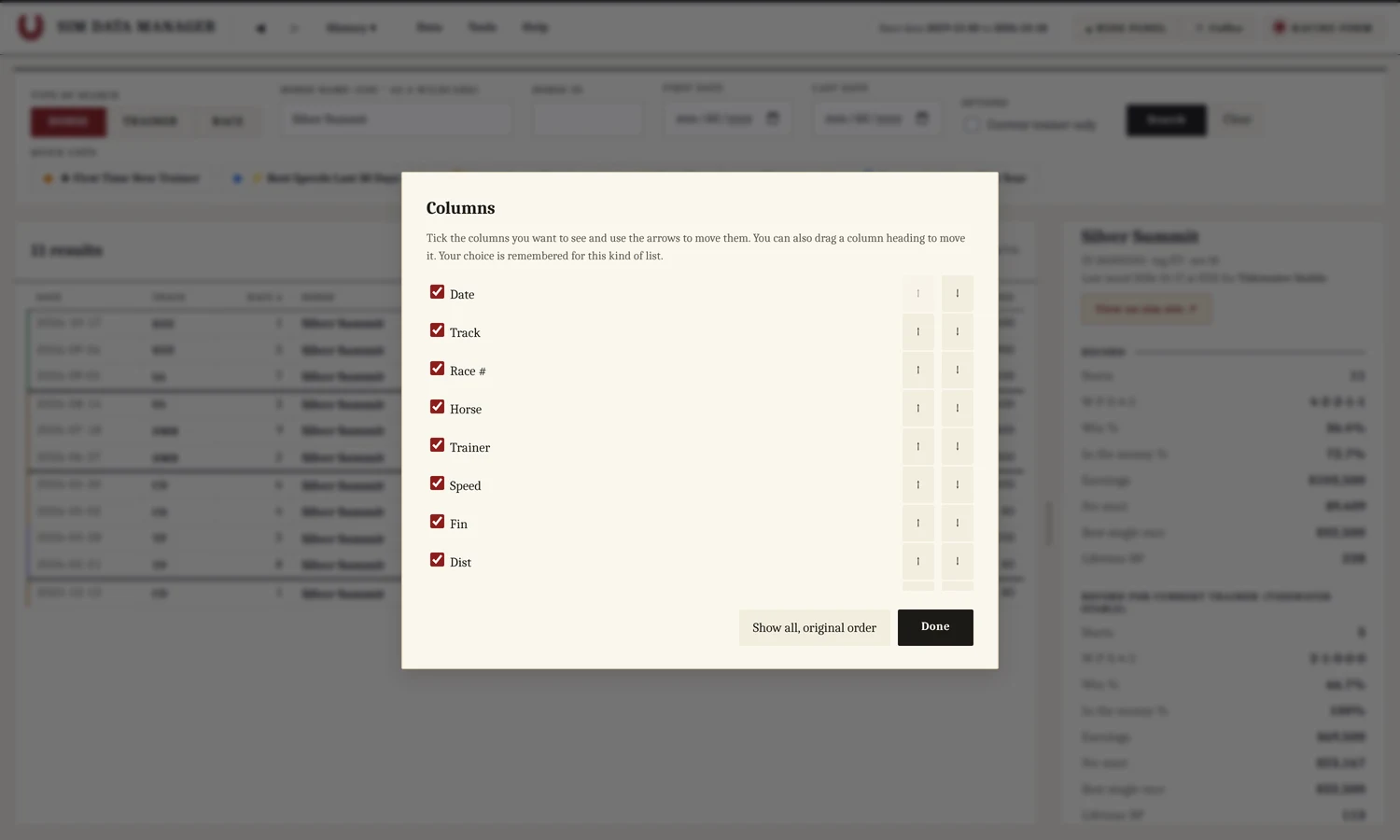
The Columns window.
The side panel
The panel shows a summary for whatever you clicked. For a horse that is starts, win-place-show record, win and in-the-money percentages, earnings, earnings per start, best single race, lifetime BP, and average and best speed. For a trainer it is the same record plus a breakdown by the age of the horses. Click a trainer name in the grid to list that trainer's races.
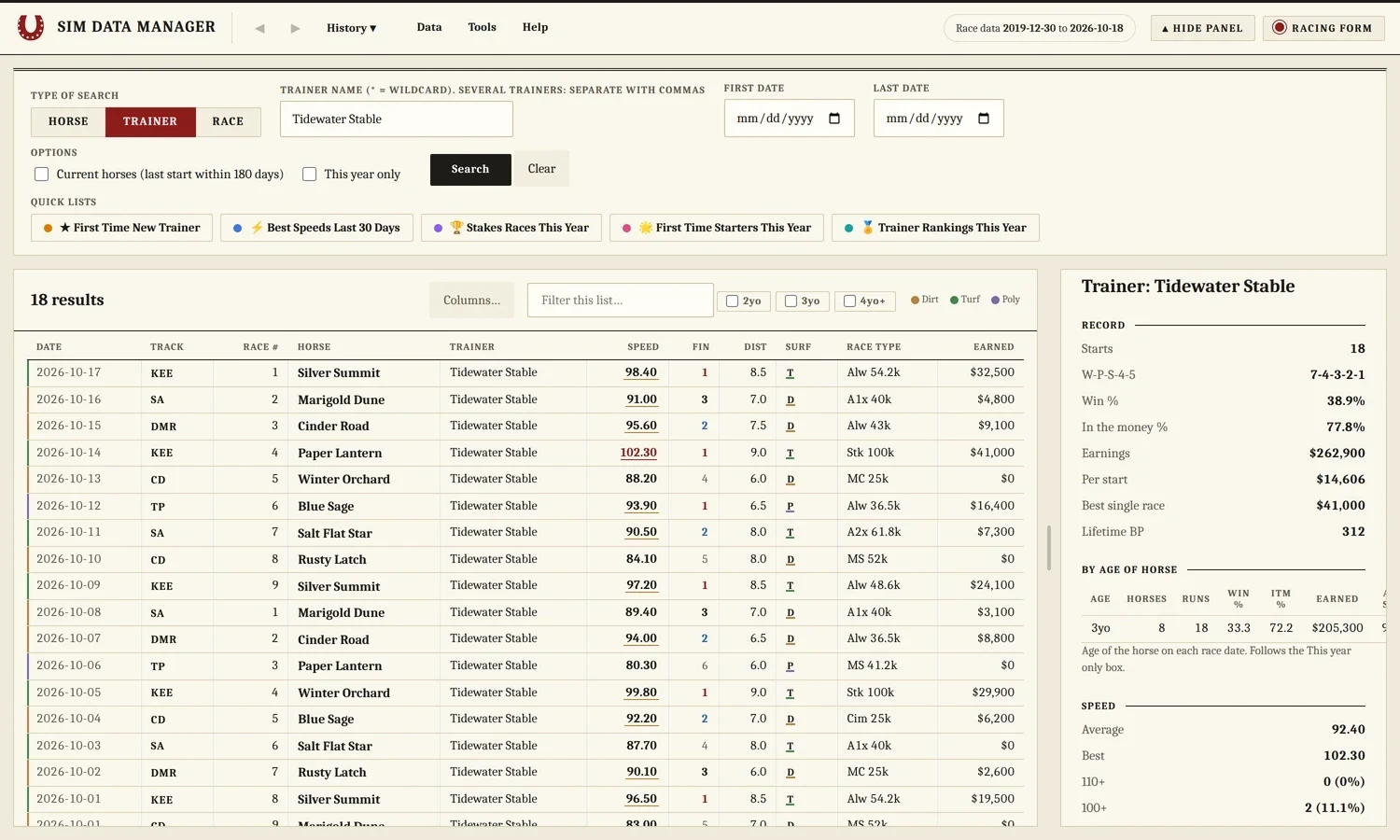
A trainer search. The panel on the right is the stable’s record, broken down by age of horse and speed.
Race panel, racing form and replay
A race search lists the field in finishing order. The side panel shows the track, date and race number, then each runner with its trainer. SDM Racing Form opens a newspaper-style page of past performances for every runner in the race, which you can expand, print or save as a PDF. Replay on old viewer opens the race replay on raceviewer.com in your own browser.
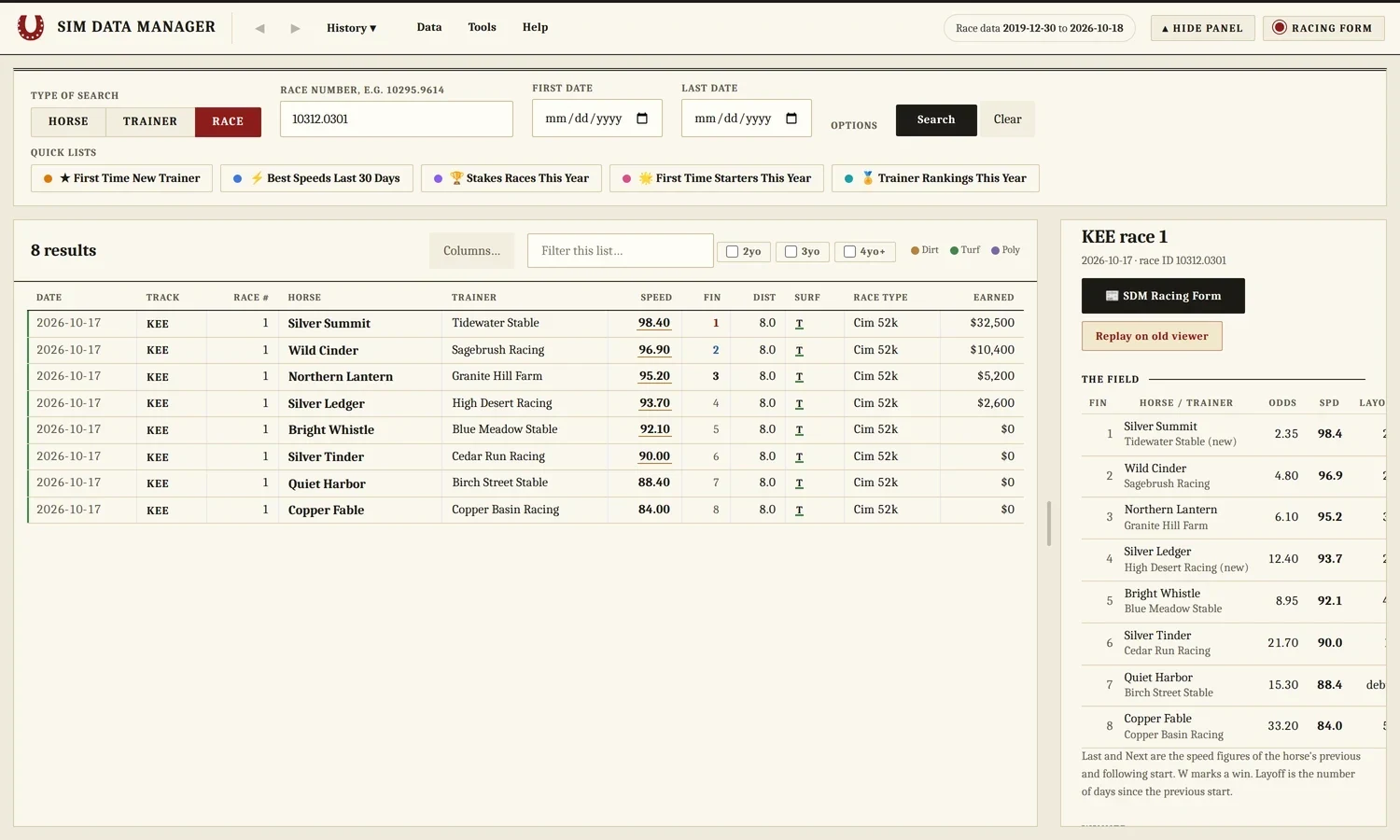
A race search. The panel lists the field.
View on sim site
The horse panel has a View on sim site link. It opens that horse's page on ehorseracing.com in your own browser, not inside SDM. The page only works if you are logged in to the sim in that browser. The first time you click, SDM shows a short reminder, and you can open the sim login page from it. Your login stays on ehorseracing.com. SDM never sees it and never stores it.
Tick Don't show this again to hide the reminder. To bring it back, choose Tools → Show the sim-site login reminder again.
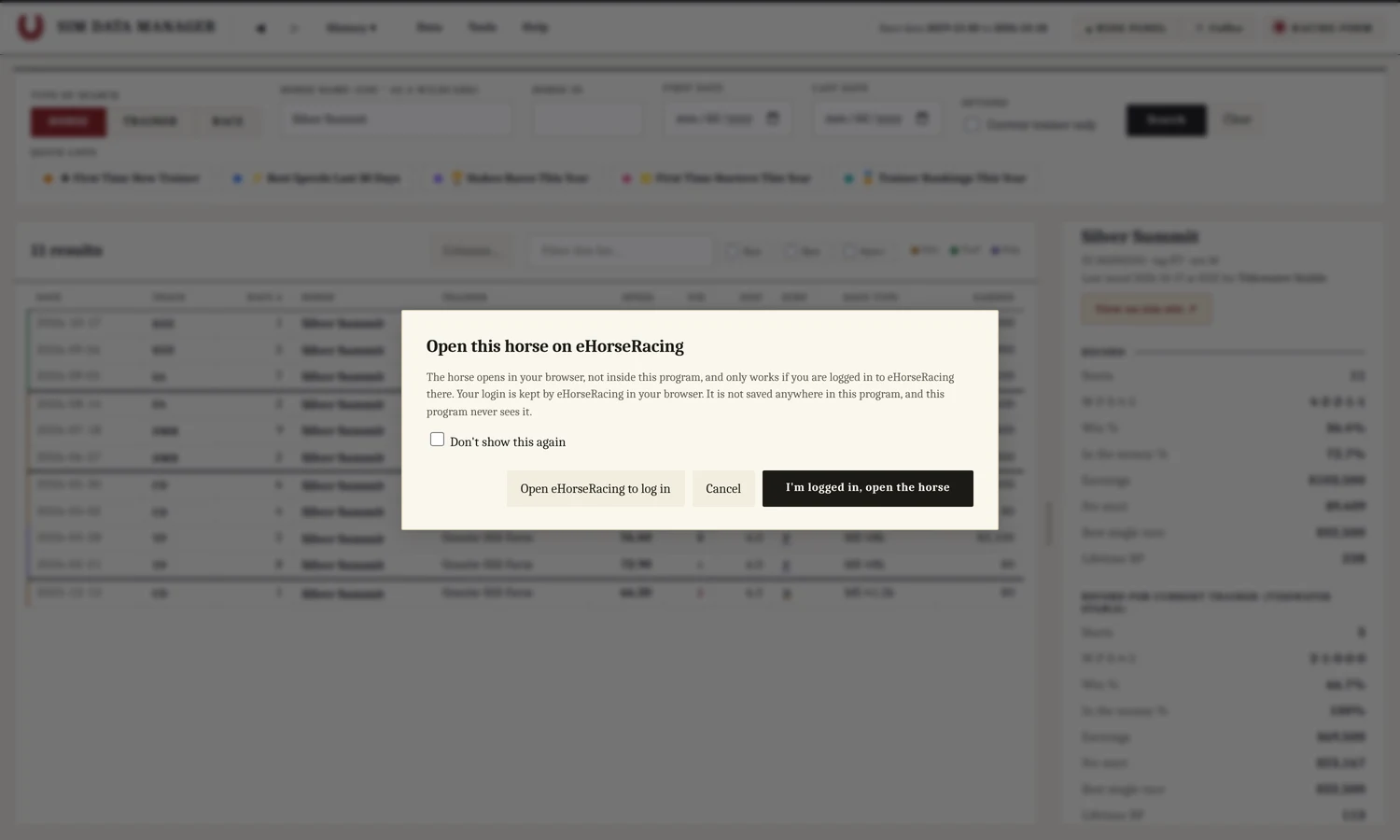
The first-click reminder.
Chapter 06
Quick lists
The Quick lists buttons under the search form run ready-made reports. Click once and wait. A gold dot means the list is working and a green dot means it is done.
- First Time New Trainer pairs each horse's last race for its old trainer with its first race for the new one. It covers the current calendar year, and the date boxes can narrow it further. It can take a minute after you load new data.
- Best Speeds Last 30 Days ranks every horse that ran in the newest 30 racing days by its fastest race in that stretch. The date boxes are not used.
- Stakes Races This Year lists every stakes and graded race since January 1, one row per race, with the winner.
- First Time Starters This Year lists horses whose very first race came this year, fastest speed figure first.
- Trainer Rankings This Year ranks every trainer with at least 25 runners this year by wins. Click a heading to sort. Computer-run stables, whose names start with an asterisk, are left out.

The Quick lists.
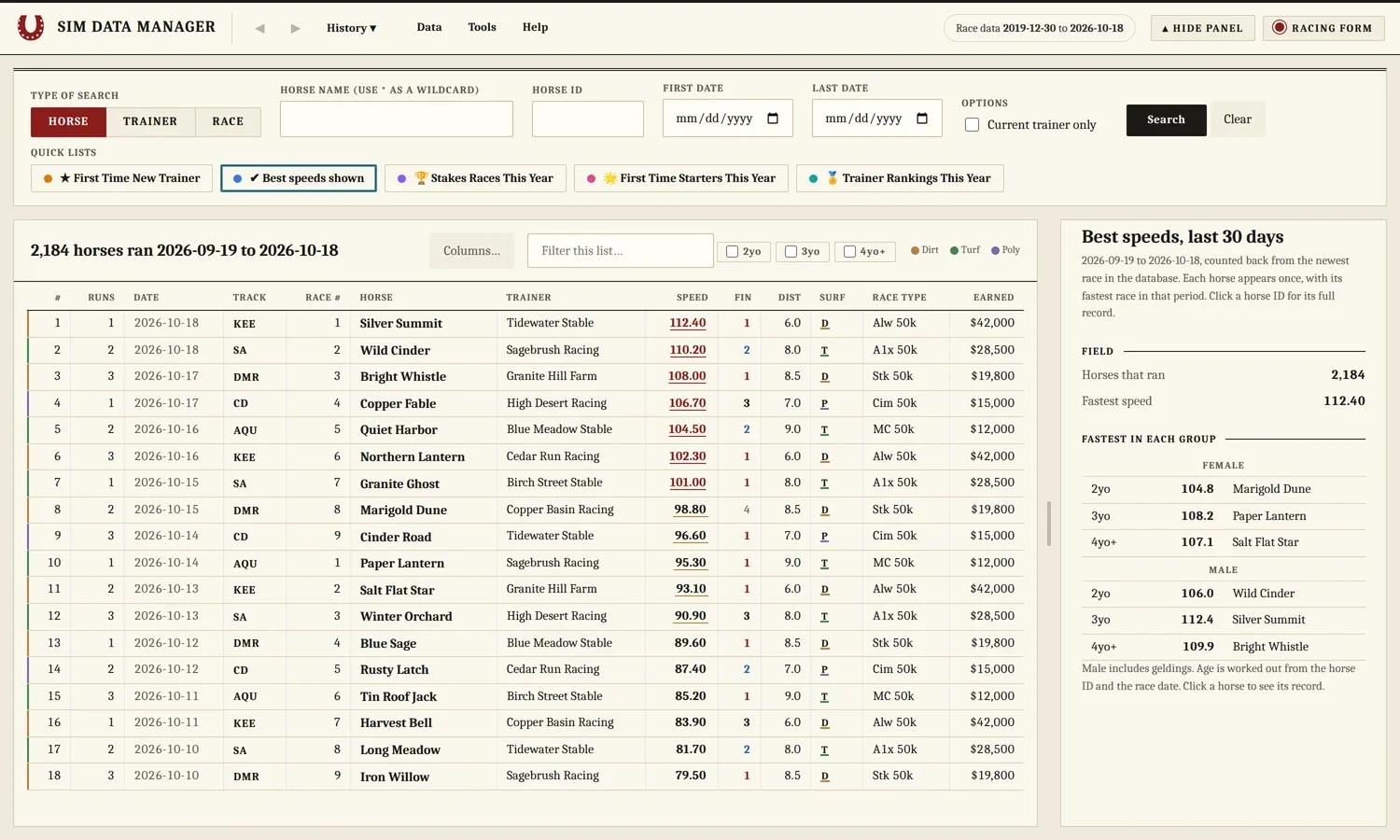
Best Speeds Last 30 Days. The panel on the right breaks the fastest figures down by age and sex.
Chapter 07
Looks and tools
Looks
The Theme button at the top right opens the Theme menu, and it shows the name of the look you are using. Racing Form is the default: cream paper, serif type and racing red. Glass Paddock is the frosted-glass look, and its glow colors only show when Glass Paddock is picked. Classic is the original plain look and follows Windows light and dark mode. Hide panel collapses the search form to give the results more room, and the button then reads Show panel.
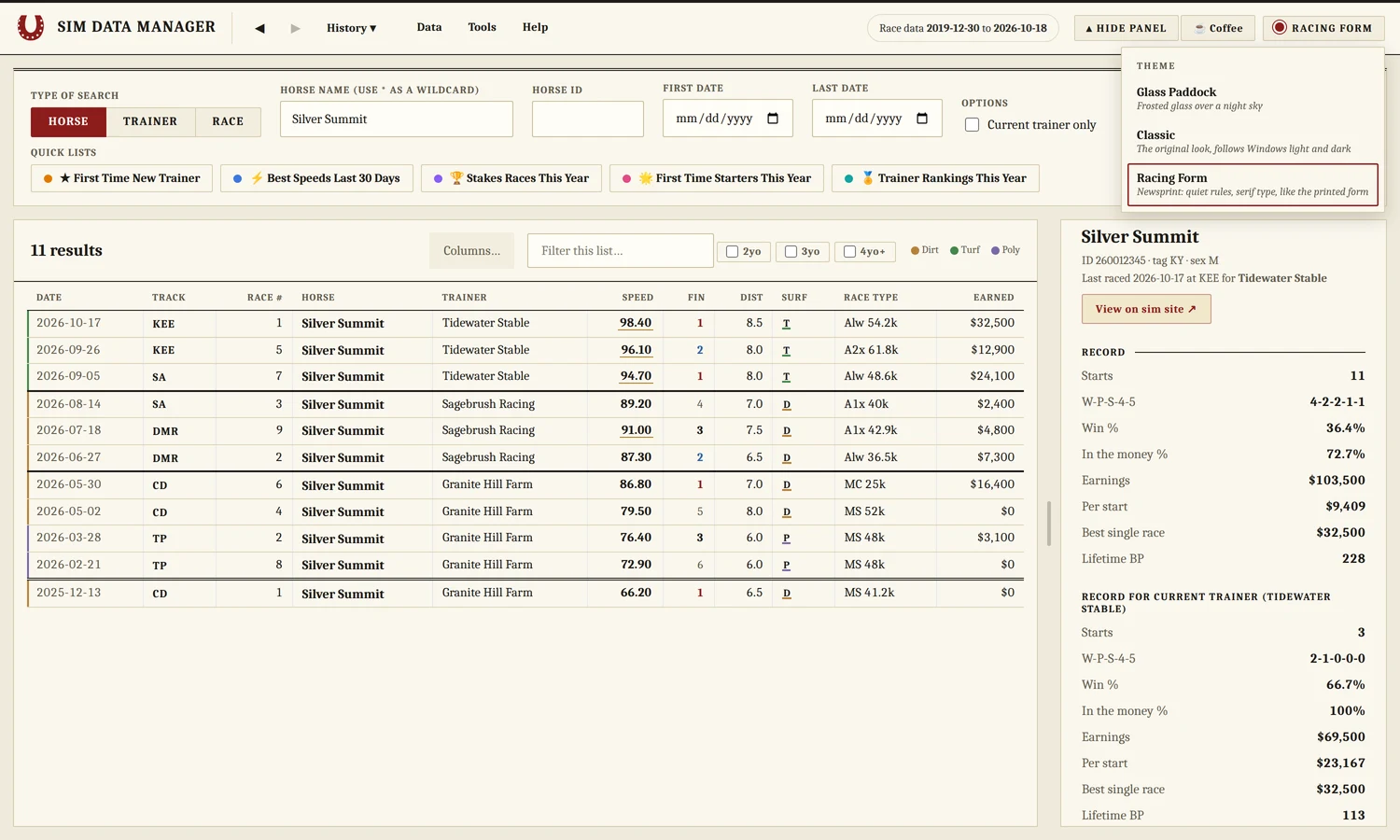
The Theme menu. The button shows the look you are using.
Saving and printing
Data → Save Results as CSV opens the current list in a spreadsheet. Data → Print Results prints it.
The Tools menu
- Date and Week Converter turns a sim week number into a calendar date and back, and lets you recalibrate if the two drift.
- Track Codes lists every track number and its code, and lets you add or change one.
- Shrink Database compacts the database file after you delete races.
- Show the sim-site login reminder again brings back the one-time reminder that the View on sim site link shows before it opens the sim.
- Database Summary shows runners, races, horses, the date range, the file size and a list of racing days with the races and runners in each.
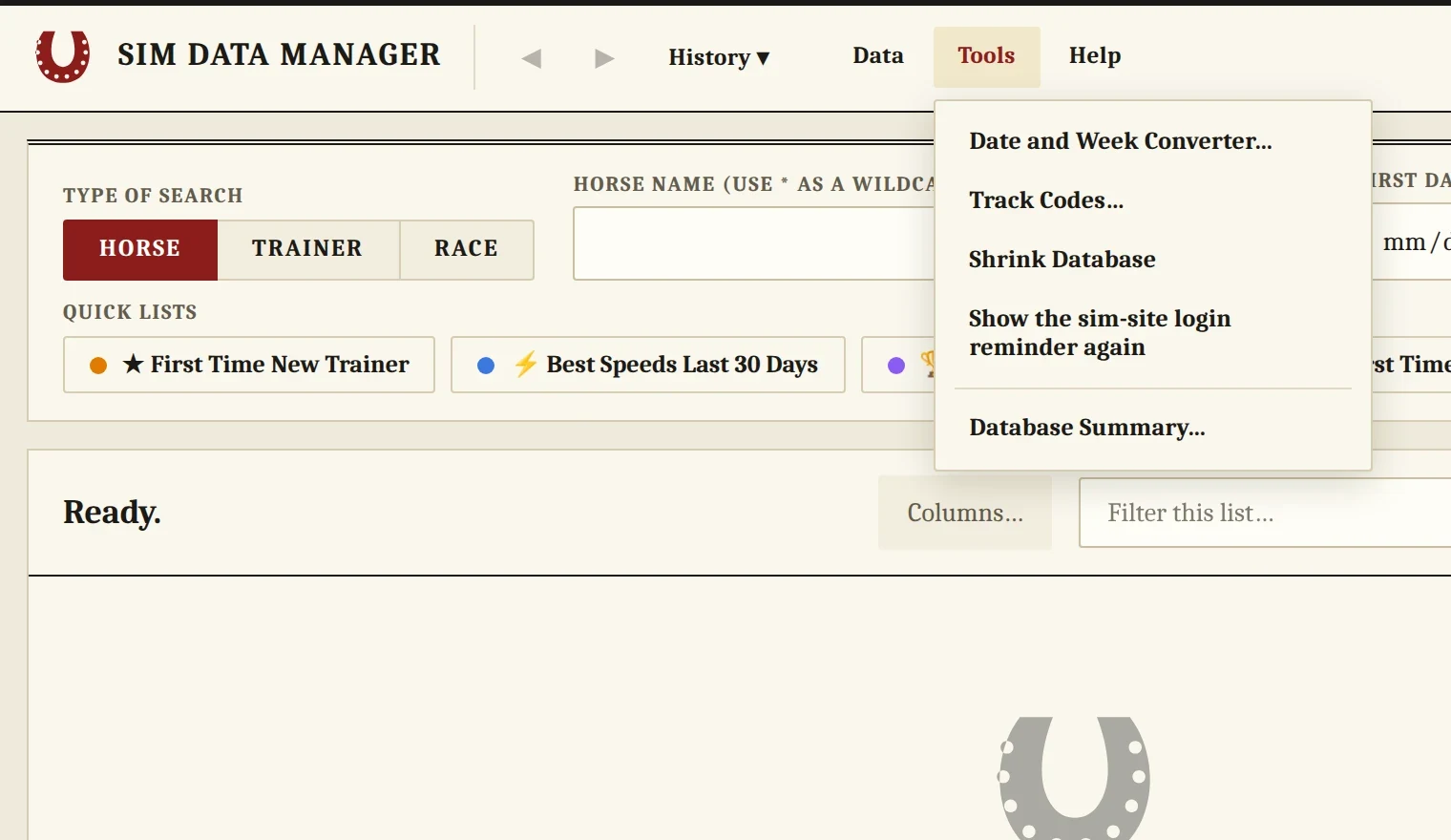
The Tools menu.
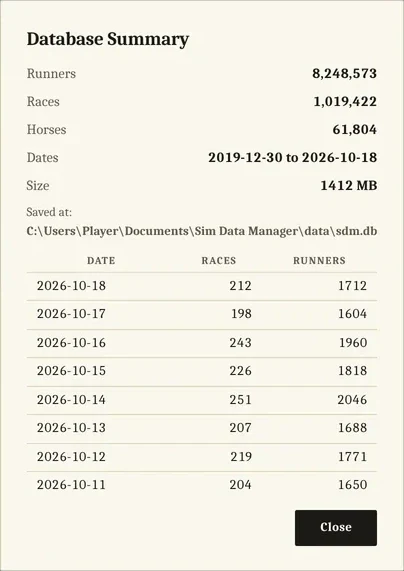
The Database Summary.
The Help menu has How to Use This, a short how-to; Check for Updates, which looks for a newer release; About Sim Data Manager, which shows the version and links to Wilder Labs Studio; and Exit Sim Data Manager.
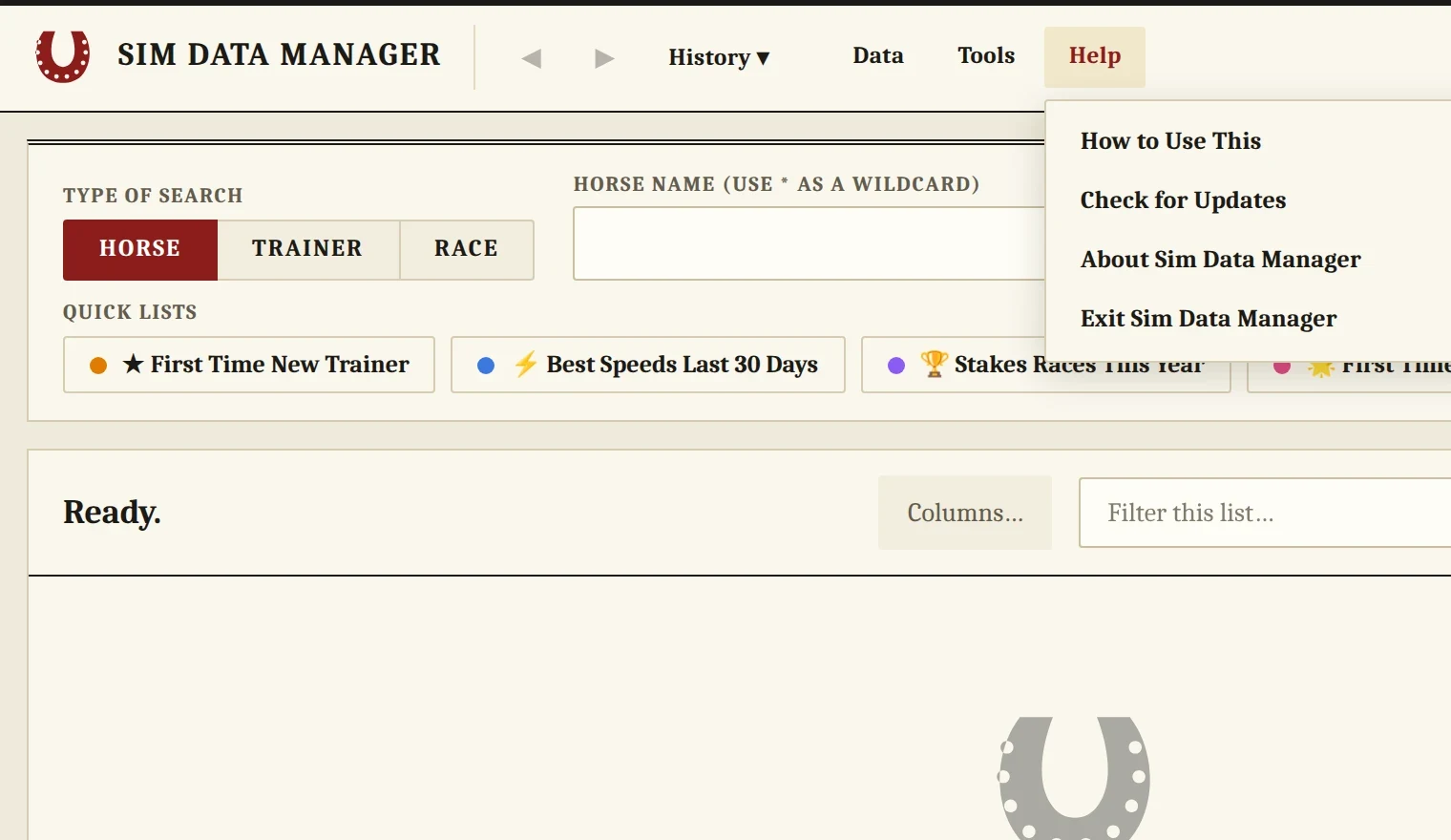
The Help menu.
Chapter 08
FAQ
Nothing opens when I double-click the .bat file.
Make sure you unzipped the download first, because the program does not run from inside the zip. Then double-click Sim Data Manager (show errors).bat. It keeps the console open and prints what went wrong. If you closed SDM a moment ago, wait about 30 seconds and try again.
Where is my data stored?
In one file called sdm.db in the SDM folder. Copy that file to keep a backup. Your settings and saved searches live with it.
The top bar says my data stops days ago.
Run Data → Get New Race Data. If the archive itself has nothing newer, the latest pack has not been posted yet. Click the bar to open the archive and check.
A pack failed or was skipped.
Some of the oldest listed packs were never uploaded, so SDM skips them without an error. For a pack you have, tick "Repair" in Get New Race Data and run it once more, or add the file by hand with Add a Data File.
Can SDM claim a horse or enter a race for me?
No. It reads data only. Claims and entries are done on the sim site by you.
Does SDM need my eHorseRacing login?
No. SDM has no login. The View on sim site link opens the horse in your own browser, where you log in to the sim yourself.
Does SDM connect to ehorseracing.com?
No. Nothing in the program goes out to the site. New race data comes from Denovo’s weekly race files, and the View on sim site link only opens a page in your own browser.
The database is large. Can I make it smaller?
Use Data → Delete Races by Date to drop old days, then Tools → Shrink Database.
How do I move SDM to another computer?
Close SDM and copy the whole SDM folder to the new PC. It carries its own Python and your database, so there is nothing to install. See Chapter 1.
Do I need to install Python?
No. The SDM folder holds its own Python and uses nothing else on your PC. You only need Windows, Chrome or Edge, and an internet connection for loading race data.
Windows says it protected my PC.
That is the standard warning for files that came from the internet. Click More info, then Run anyway. You only need to do it once. See Chapter 1.
Chapter 09
Known limits
- SDM runs on Windows. There is no Mac or phone version yet.
- Data is only as new as the last weekly pack you loaded.
- View on sim site needs you to be logged in to the sim in the same browser.